Taming the Inbox: Outlook Tasks

An unfortunate feature of modern life is a deluge of emails. Many emails require actions. However, it is easy for emails that require action to be lost in the black-hole of an inbox or mail folder.

A nice way to keep track of emails and actions is to use Outlook Tasks.

Generating a Task from an Email

When you get an email that requires an action right click on the email. Go down to “QuickSteps” and see if you have an “Assign as Task” option (or something similar).

If you do not have an “Assign as Task” QuickStep, create it using the following steps:
1) Right click – select “QuickSteps” – select “Create New”;
2) Name the QuickStep “Assign as Task” and select “Create a task with attachment” from the “Choose an Action” dropdown list; and
3) Click Finish.

Once you have an “Assign as Task” option, click it to convert the email into a task. If you have Remember the Milk you can then use “MilkSync” to sync the task to your todo list.

Assigning Tasks

You can also assign Tasks to other people. When the Task screen appears select “Assign Task” in the top tool bar / ribbon.

You can then type in an email address of a colleague, set a due date, a priority level and some text explaining the required action.

When you click “Send” the task is received and added to the recipient’s list of tasks. The original email is included as an attachment for reference.

The advantages to this are:
1) the recipient can keep track of the task (rather than have it drown in a sea of email);
2) the recipient has your instructions and the original email; and
3) the recipient knows how urgent the task is and can order by due date.

This can help a lot when organising team projects. (Or at least where Trello and RTM are a little too “early adopter” :.)

Online Patent Registers in United Kingdom, France and Germany

Many European patents are validated in United Kingdom (UK/GB), France (FR) and Germany (DE). This results in equivalent national patents in each of these countries. Obtaining status information on these individual national patents is getting easier everyday.

The European Patent Office is soon to release its “Federated Register”. This will allow you to access national patent registers via the European patent register. A new tab is provided on the left-hand side of the pre-existing European patent register to access this feature.

While we wait for the Federated Register you may find the following links useful:

Just enter the equivalent European patent publication number (e.g. EP1234567) in the “publication” field and off you go. I tend to print the displayed results to PDF to have a dated static record.

Update

A helpful colleague alerted me to an easier way to see the status of a European patent on the national registers.

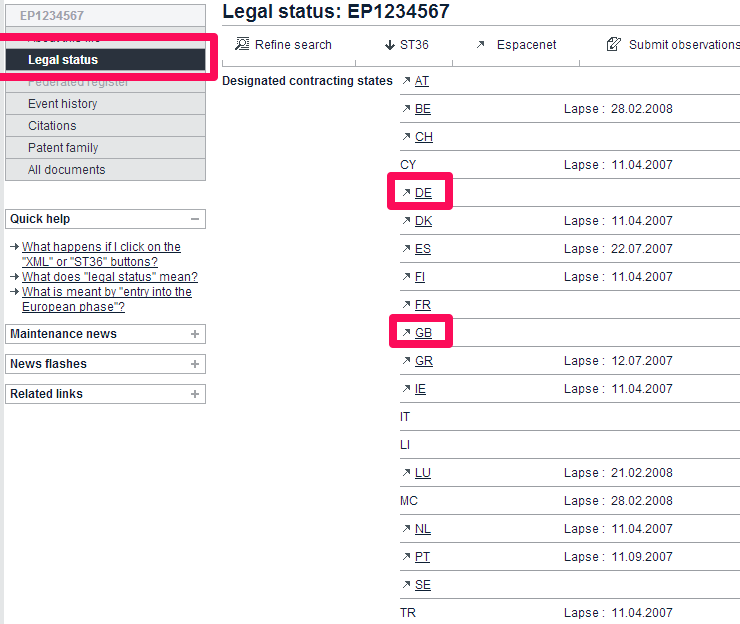
On the European Patent Register click “Legal Status” – you can then click on the countries to hyperlink to the appropriate national register.

Easy!
Easy!

Patent Pending in the UK

You are in UK. You have spent thousands of pounds on a UK or European patent application. How can you reap some return on this investment without suing someone?

The band "Patent Pending" taken by Jtdscape
The band “Patent Pending” taken by Jtdscape

One way you can do this is to show that you have applied for a UK or European patent application in your marketing material. You may want to tell the world that your product or service is new and innovative. You may also want to put some distance between yourself and your competitors.

In the UK can mark your product or service as “patent pending”, but this comes with some caveats:

  • It is an offence to mark your product or service as “patent pending” when you do not, in fact, have a UK or European patent application (see Section 111 of Patents Act 1977). To clarify, you will not have  a UK or European patent application if:
    • the obvious one: you have not filed a UK or European Patent Application; and
    • the slightly less obvious ones:
      • you have filed a first application outside of the UK or Europe and have not filed a priority-claiming UK or European patent application;
      • you have filed a International (PCT) Patent Application but have not entered the UK or European phases after 31 months; and
      • you have filed a UK or European Patent Application but it has been considered withdrawn or refused.
  • We now live in a global world. A web-based service is accessible from anywhere on the globe and many business ship worldwide. If you mark a web-site as “patent pending” when you have a UK or European Patent Application, someone viewing the site from outside the UK may assume you have a patent pending in their territory. This could get you into legal trouble. Hence, it is recommend to specify that you have a “UK patent pending” or a “European patent pending”. For a belts and braces approach you may wish to add the application number.

If something changes and you no longer have a UK or European patent application, you have a “reasonable” amount of time to change your marketing materials, product and/or website. As this is a bit woolly, and will vary for each case, it is recommended to instruct that information is changed within 3 months of notification of the change (e.g. after receiving an email from your patent attorneys saying that your application has been refused).

Growth Accelerator

I have recently come across the Growth Accelerator scheme. They are on Twitter as @GrowthAccel. It looks potentially useful for small to medium sized businesses in England.

It is a public/private business coaching service for high growth companies. It is mainly funded by the government via the Department of Business, Innovation and Skills. To be eligible a company has to be UK registered, have up to 250 employees and a turnover of under £40 million. The coaching can fit with existing programmes and aims to help achieve high growth (~20% year-on-year for 2-3 years – but flexible for each company). There is a cost which is dependent on size: up to 9 people – £600; 10-49 people – £1,500; and 50-249 – £3,000.

One of their offerings is help and advice on commercialising innovation. This can involve the preparation of an intellectual property (IP) Audit. This generally covers the IP owned by a company but can be tailored for particular situations. For example, one company may want it to be directed at a planned new product launch, whereas another may want a more general overview. The selling point for companies is the UK Intellectual Property Office pays. This is worth at least the cost of the scheme for a larger size business, notwithstanding the business support coaching, advice and guidance.

As the cost is not particularly onerous and the scheme is heavily subsidised,  it might be useful for growing smaller companies or for projects in larger companies (e.g. new product launches). Larger companies such as Huddle and The Fabulous Bakin’ Boys are part of the scheme and so it should not be thought of as directed towards the smaller end of the business spectrum.

I recommend that anyone who is interested check out their website where you can apply online.

Cheaper Patenting: Writing Your Patent Specification

Part of a series teaching you how to reduce patenting costs.

OK. You’ve done a search and nothing appears to anticipate your idea.  You’ve got the green light to proceed with a patent application. What do you do?

You now need to prepare a patent specification. This will be the document that is filed at a national patent office to begin the process of obtaining a patent. The process of writing a patent specification is referred to as “drafting”.

As your legal rights are defined by the contents of the patent specification, in particular a section at the end of the specification called the “claims”, it is vital that the specification is properly prepared. Having seen a number of inventor-written patent specifications, I strongly recommend involving a patent attorney, if only to make sure the claims are well-drafted. This is because you need to have spent thousands of hours writing, revising and amending claims as well as understanding the law in at least one jurisdiction to properly draft claims; it is unlikely that most inventors will be in this position. Many inventor-written patent specifications are rejected during examination, wasting hundreds or thousands of pounds in official fees.

So if you need to hire a patent attorney to write at least a portion of your patent specification, how can you minimise his/her costs?

What is a Patent Specification?

In brief, a legal document usually consisting of around 20-40 pages of written text and a number of drawings or figures. It will be written in a number of iterations with the inventor. It has some similarities with a high-level standards document.

The written text consists of the following sections:

  • “Field of Invention” – This is a short paragraph – three or four sentences – which sets out the field of technology of the described invention. It generally mirrors the wording of the beginning of the main claim. The aim of this section is to guide a person searching for related documents; it may mirror the hierarchies expressed in one or more patent classifications. For example, if your invention is a new form of turbine blade for a wind turbine, the “Field of Invention” may be something along the lines of: “The present invention relates to turbines. In particular, but not exclusively, the present invention relates to a turbine blade and a method of constructing such a blade. The present invention is particularly suited for employment in wind turbines“.
  • Background” – This provides the background to your invention. It is usually one or two pages. Like a good detective story, it should describe the problems faced by existing solutions without hinting at your own particular solution. It is worth keeping this reasonably broad and reasonably brief, what might seem to you, the inventor, to be an obvious problem might not be so obvious to a generic “skilled person” in your field of technology.
  • “Summary of Invention” – This section typically mirrors, or makes reference to, the claims of a patent specification. If the following detailed description does not explain the advantages of your invention, you may wish to add these here. You may also wish to briefly expand on important portions of the claim language. As the “Summary of Invention” may need to be updated as the language of the claims is changed during examination of the patent application, for European practice I typically recommend only referencing the independent claims (e.g. “An aspect of the present invention is set out in claim 1“) and describing any advantages and/or expanding on claim language in the detailed description.
  • Description of the Figures” – This section briefly describes the figures or drawings. A brief sentence is needed for each figure. For example, “Figure 5 is a circuit schematic showing an example of the present invention“.
  • “Detailed Description” – This is the meat of the patent specification. It describes, in detail, each implementation of your invention (referred to as “embodiments”). Typically, the description is based on the figures. The figures may show the structure of an implementation from one or more angles, a flow chart or schematic illustrating a method of manufacture and a flow chart or schematic illustrating a use of the invention. Hence, the description may describe a structure, a method of manufacture and a use of one or more implementations. The figures may illustrate a hierarchy of abstraction – a feature may be illustrated in one figure at a systems level (e.g. a functional box) and in another figure at a detailed level (e.g. a circuit or engineering diagram). Any variation you can think of should be described. The detailed description should present your idea as a non-obvious solution to any problems described in the “Background”. The detail description should describe the general idea as well as the detailed implementations. The detailed description needs to support any claims (enable a general practitioner to replicate or create any product or process defined in the claims).
  • “Claims” – These are a number of paragraphs that set the scope of legal protection, i.e. any monopoly granted by an eventual patent.  They are the most important part of any patent specification. They are numbered. Claim 1 is what is called an independent claim – it does not refer to (i.e. include) the features of any other claim. Claim 1 cannot be anticipated by, nor rendered obvious in light of, any document published before the patent application is filed. However, it should also be broad enough to cover any immaterial modifications (“work arounds”). More features will be typically added to claim 1 during examination of the patent application as published documents relating to your idea are found. Dependent claims refer to other claims and include all of their material, e.g. if claim 1 specified feature A and claim 2 referred to the invention of claim 1 with feature B, claim 2 requires features A and B.

If you bear these sections in mind when providing information about your idea this can save time in drafting and hence save costs.

How Can I Help?

In most cases, the more information an inventor or company provides about an idea the better. The following tips should help reduce drafting costs:

  • The inventor is primarily responsible for the text of the Background and the Detailed Description and the Figures. He/she should concentrate on providing this. A patent attorney can quickly write the Field of Invention, the Summary of the Invention and the Description of the Drawings once this has been supplied and the claims have been drafted.
  • Figures are hugely helpful when drafting. Hand-sketched or computer-generated documents are fine. Flow diagrams and system diagrams are perfect. Editable engineering or network diagrams in a CAD or Visio format are also great. Don’t worry about cleaning these up too much, they will usually need to be edited as part of the drafting process. For example, a large engineering diagram may be broken up into several smaller cutaways. It is also useful to supply any drawings early in the drafting process. A usual number is 5 to 10.
  • For the Claims the most useful input is a series of keywords that the inventor believes covers the invention. It is also useful to indicate any features that he/she believes are essential (i.e. without which the idea will not work or will not have its effect). For the dependent claims, the inventor could attempt to identify any non-essential variations, modifications or specific implementations that have independent (non-obvious) advantages. For example, if claim 1 specifies a “biasing mechanism” but in one implementation a compressible rubber bung is particularly useful as it is easier to mould into a particular configuration then claim 2 could specify this bung.
  • A complete list of acronyms used in any text is useful. Those in a specialised field may not be aware of other abbreviations but a quick look at any Wikipedia disambiguation page shows how ambiguous some acronyms can be. This is especially important in technical fields with their own jargon (e.g. oil speculation, telecommunications etc.).
  • It is helpful if the inventor provides at least three different implementations of his/her idea, even if only one of them may find its way into a product. This is because designs often change during the product lifecycle and a patent specification has to take this into account. The claims should thus cover any changes that can be made which do not affect the underlying technical idea. Three different implementations helps provide basis, i.e. legal support, for any generalisations to accommodate changes. For example, an electronic device may have a display. Over a product lifecycle that display may be implemented by a LED array, a CRT screen and then by an AMOLED panel. Hence, the claims need to specify a display rather than any of the particular implementations. In any description the inventor may say “At the moment we use a LED array but ant display could be used including a projected image or an LCD panel.
  • As well as a description of a structure, a description of use and manufacture is also important. It may not always be obvious to provide this, especially when the inventor may consider it easy to infer these details from the structure. A good idea is to imagine a patent attorney as a well-meaning yet simple teenager; if you have a good attorney they will not be insulted (remember a judge’s or jury’s science education may only be at a high-school or GCSE level). The patent attorney can chose the appropriate level at which to provide the technical detail in the specification.
  • Review any documents provided by a patent attorney in detail and answer any questions in full.
  • Provide any supporting documents that may be relevant to the background of your idea. For example, old manuals, text book entries or old scientific papers. A useful tip is to dig out a shortlist of between 10 to 20 documents then provide the most relevant and informative 5.
  • Make use of change tracking software, such as “Track Changes”, and make your attorney use it too. This saves a lot of time when performing iterations of the text. In-line comments are also handy.
  • If anything does not appear clear or the language seems strange point it out to the drafting attorney. It some cases it may be a quirk of “patentese”, the language of patent attorneys; in many cases, it will get the attorney thinking and improving the specification.

Summary

For a patent specification to have any chance of passing examination, and being held up as valid in court, it does need to be drafted by a patent attorney. However, there are many steps an inventor or company can take to minimise the drafting time and thus minimise the drafting costs.

Cheaper Patenting: Searching

Part of a series teaching you how to reduce patenting costs.

OK. You have your idea. You may be an individual inventor, an engineer building a product or an office manager faced with an invention disclosure. You know that initial charges for drafting and filing a patent cost from between 3.5k to 10k pounds (5k to 15k dollars). What do you do?

The answer is some background research in the form of searching. If you find a published document that describes your idea, you have saved yourself the drafting and filing costs. You may have also found a potential partner or competitor.

In an ideal world you would get a search department of a patent attorney firm to perform a search for you. A thorough search and analysis may cost around 1.5-2k pounds (2-3k dollars). However, we do not always live in an ideal world: you may then wish to perform your own search.

Doing Your Own Search: Where to Start?

The obvious answer is Google. Here are some tips:

  • Write down a number of keywords that describe your idea or invention. About 10 should do. Perform searches on pertinent combinations of three of these keywords. About 5 or 6 separate searches as a start.
  • Limit the time you follow links and examine search results. About 10 minutes or 15 minutes for each search should do.
  • Record, record, record. A simple way to do this is a table in a word processor or spreadsheet. Record the search string (e.g. the search keywords) together with the three most relevant results. You can copy and paste the resulting links directly into the table.
  • Iterate. Use the results of the first set of 5 or 6 searches to modify your sets of keywords and search strings. Is there another term that keeps appearing in your most relevant results? Add that to your search string. Can you think of more generic terms or synonyms for your 10 or so keywords? Try them instead. Think in functional terms. For example,  “message” instead of “IP packet”, “clothing” instead of “shirt”, “bias” instead of “spring”, “rotate” instead of “pivot” etc.. Add a divider to your results table (e.g. page break / line), perform and record another 5 or 6 searches with these new keywords.
  • Use image results (“Images” option in Google) as a quick way to find relevant results. If you idea is related to a physical structure you can quickly scan the images displayed for that structure. Copy and paste relevant images, as well as the associated link, into your results table.
Doing Your Own Search: Next Steps, Patent Publications!

Has your Google research returned anything that appears to cover your idea? (“Knock out your idea” in patent slang.)

  • If the answer is a resounding “yes” then it is going to be extremely difficult to obtain a patent. But hey, you’re not going to throw away thousands of pounds or dollars on a new patent application.
    • You may wish to think about modifications that are not covered by the search results.
    • If you are looking to proceed with commercialising an idea, you may wish to check that the search results are not associated with patented technologies. For example, check the website in the search result for the word “patent” (Ctrl-F) or make a note of the company name for the searching described below.
    • Print to PDF the webpage/image/text that appears to describe your idea. Save this somewhere safe. If other try to patent the same idea you may be able to use this result to invalidate their patent and avoid paying royalties.
  • If the answer is “no” then things may be promising. It is time to search another database! Patents this time. The best place for this is a website called “EspaceNet” provided by the European Patent Office.
    • There are three search fields in the “Advanced Search” that are useful: “Keyword(s) in title or abstract”; “Applicant(s)”; and “Inventor(s)”.
    • Use your most relevant search strings from your Google searching in the “Keyword(s) in title or abstract” search box. Record your results – I prefer to save the results page as a PDF.
    • If more than 100 results are returned try to narrow down your search. You can either add more search terms or look to see which classifications are applied to the most relevant results. The classifications are a code such as “H03M1/12”. You may find your relevant results all contain “H03” – hence, when repeating your search type “H03” in the “International Patent Classification” search box.
    • You can also look to see whether any inventors or companies keep appearing in the results. These may be your competitors. Try searching for patent publications from these inventors or companies (the company name goes in the “Applicant(s)” search box). Beware the applicant will be a legal entity – this may differ from the trading name; for example, if your idea relates to washing detergent a relevant applicant name may be “Unilever” as opposed to “Persil” or “Surf” (which are brand names). Also search using inventors’ surnames, as first names are often omitted, or given in the form of initials only.
    • For each relevant result (click on the hyperlink provided in the result list), work forward through citing documents (“View list of citing documents” hyperlink below “Priority Number(s)”) and backwards through cited documents (For EP publications these are listed in the “Cited Document(s)” row).
    • Set yourself 30 minutes of iterating to try to find 3 to 5 relevant patent publication results. Make a note of the numbers and download the PDF publications (click on Original Document after clicking on the hyperlinked search result).
    • Espacenet covers many countries worldwide, including US patent publications, those relating to most European countries as well as those published by the European Patent Office, and a number of Asian countries including Japan, South Korea and China.
Doing Your Own Search: Results

By now you should have documented any Google and patent publication results. Take about 30 minutes to talk through the results – preferably a conversation with the idea originator and someone of managerial level (e.g. someone responsible for funding a patent application).

If nothing has come up, the idea likely has scope to be patented. You may provide your results to a patent attorney or professional searcher to proceed with an application. The results will help focus the drafting process, possibly saving you money by reducing the time needed. If the results are good, you may save yourself a thousand pounds or so of searching costs.

If something has come up, do not despair! It may help to focus your inventive efforts by stimulating modifications and improvements which may be new and inventive. You have also performed an initial IP audit: the results may be used to influence freedom to operate searches. For example, if your idea forms part of a product, it may be that the idea has already been patented and one or more patents are in force and cover your product. You can then look to obtain a license to avoid the prospect of litigation or redesign your product to avoid infringement.

Summary

Performing your own search is relatively easy. It may take an hour or two of someone’s time, but apart from that it is free. It provides an initial filter on ideas, making sure you only spend money on what is more likely to be valuable.

Cheaper Patenting: Why Patents Cost Money

When I talk to small businesses and start-ups I often hear:

“We would like to obtain patent protection but the process is too expensive.”

“You need millions to enforce a patent, why bother?”

“Where are we going to get thousands of pounds from to pay for an application?”

“The fees are so high!”

Patenting an invention is expensive. But so is doing business. Performing an audit, paying taxes, filing accounts, commissioning an advertisement, complying with employment legislation and paying for an office; these all cost money. Running a business is an expensive process, the idea is to earn enough revenue to pay for the expenses, while also making a profit.

Return on Investment

Similar to marketing and PR, patenting can increase revenue. A company can receive monthly and /or annual payments for licensed technology. You can think of this as a rent on intangible property.  A company can also increase sales of a product by offering a feature that cannot be provided by competitors without the fear of possible legal action.

Patents can also help a business by increasing investment, increasing a company’s valuation and/or increasing the amount of money that is paid for a company if it is acquired.

If the net financial benefit of a patent is greater than the costs of obtaining that patent, then obtaining a patent is likely a good idea.

Long Term Thinking

Patents require long term thinking. They last for 20 years from the date of filing.  A patent may only be granted after 3 to 5 years of prosecution before a national or regional patent office. The process of drafting, filing and prosecuting a patent application may cost between 10k to 30k pounds (15k to 40k dollars), over those 3 to 5 years. Renewal fees may then cost between 100 to 1500 pounds (150 to 2000 dollars) annually, depending on location.

If you can license your patented technology for 50k pounds (70k dollars) a year for at least 5 years following grant, you can easily cover that initial investment and add to your bottom line. You just have to plan up to 10 years into the future. This may be difficult if your business plan changes every 6 months.

Who Sets the Fees?

Obtaining a patent costs money for two reasons: official fees and professional fees. Typically, about 20-30% of total costs will be official fees. The rest are professional fees.

Patent attorneys typically operate on an hourly billing system – their fees are equivalent to other professionals, e.g. private doctors, lawyers and accountants.

A patent attorney, at least in the UK and Europe requires a science or engineering degree, potentially a Masters or Doctorate, plus between 4 to 8 years on the job legal training. The legal training consists of multiple sets of exams with 40-50% pass rates. A patent attorney’s charges, plus any service charges, must also cover business running costs such as office charges, paralegal charges, insurance, the cost of banking as well as other miscellaneous business costs. Hence, professional fees are predominantly set by the market. If the market requires, and pays a premium for, engineers, this will be reflected in professional fees. Patent offices also need scientists and engineers to perform examination, which sets official patent office rates.

Helping Reduce Costs

There are ways in which companies can make patenting more affordable. There are ways to reconcile short-term business demands with long-term thinking. There are also ways they can reduce professional and official fees.

Over the next few months I will set out some of these under the “Cheaper Patenting” series. Some suggestions are common sense. Most require a little thought and time. I hope they will help stack the odds in your favour.

Multiple Desktops on Multiple Monitors: How to Cope with Screen Overload

So. Your office is now paperless. Your desk is (mainly) clear of paper. You feel proud of embracing the future.

However, over time, slowly but surely, your old paper clutter infects your digital world. You have multiple applications, email clients, web browsers; multiple cases, matters and tasks. Your monitor becomes a confusing tangle of windows upon windows and your newly gained productivity slowly drops again. What do you do?

Multiple Monitors

A first step is to get extend your desktop onto another monitor. You can pick up a 21-inch USB monitor for around £139 (at the time of writing). Also many offices now have a glut of old 15-inch LCD monitors floating around; a second graphics card to give you a second VGA port will cost around £30. (You can also use any additional ports, e.g. DVI/HDMI to add further monitors). One screen can be used for “always-open” applications such as email or a web browser; the other can be used solely for work products (e.g. office-applications, CAD programs, IDEs etc).

Multiple Desktops

Those who have been smugly using Linux operating systems (e.g. Ubuntu) for ages will understand the usefulness of multiple desktops. Basically, a little icon in the corner of your screen or on your task bar allows you to have multiple instances of your desktop that exist simultaneously. You can switch between each instance using the mouse or assigned hotkeys. This effectively gives you multiple computer workspaces.

Windows has been slow to get involved in the multiple desktop party. To my knowledge no native Windows tool exists. However, through my travels I have come across a variety of third party tools that provide multiple desktop functionality:

  1. For XP there is a small Power Toy called Virtual Desktop Manager (see link for download) that provides up to four desktops with links on the taskbar and a handle preview feature. I started using this but found it a little slow and buggy.
  2. There is also a small Sysinternals tool called Desktops (see link for download) that provides similar functionality (up to four desktops). It also has a handle system bar icon. However, I found that applications crashed quite often when using it.
  3. Finally, I came across VirtuaWin, which is a freely distributed program and is licensed under the GNU General Public License. It supports all versions of Windows (I have only tried XP) and offers a usable portable version to avoid install conflicts. It is by far and away the fasted and most stable tool. I have the Windows key and the arrow keys set up as hotkeys to switch between the four offered desktops and the system bar icon offers a handle one-click representation of your open programs across the desktops.

I now have two monitors and four desktops working nicely with each other. One quantifier for Windows is that a relatively heavy duty machine is required (however, most multiple core Intel machines with GBs of RAM should be fine). I can have a dedicated desktop for each matter I am working on and move all distractions to other desktops. Productivity is restored.

A Searchable CIPA Journal Archive

The CIPA Journal – the august publication of the UK’s Chartered Institute of Patent Attorneys – contains a veritable treasure trove of articles for the discerning Patent Attorney. It’s a shame then that, after an initial read, most editions find themselves in a forlorn pile in a distance corner of the average Patent Attorney’s office…

CIPA Journal

…Until now. With a few simple steps, you can breath life into those old editions and be the envy of your Attorney colleagues. Here’s how to do it:

  1. Goto the CIPA Website: http://www.cipa.org.uk .
  2. Log in as a member (“Members” link on left-hand side).
  3. Once logged in, click “Journal Archive” on the right-hand side.
  4. Download the available issues into a directory, such as “CIPA Journals”.

This gets you a nice collection of CIPA Journals in PDF format. You can use Adobe Acrobats “Find” feature:

to search in individual editions. However, to be of real use we need to be able to search the whole directory. There are two ways to do this:

Using Acrobat Portfolios

Adobe Acrobat 9 has a “Portfolio” feature. Click on “File” > “Create PDF Portfolio” to create one:

Portfolio

When the Portfolio screen loads up click “Add Existing Folder”:

Add Existing Folder

Choose your “CIPA Journals” folder. After Acrobat has worked its magic, save the Portfolio using “File” > “Save Portfolio As…”. You can now search through the Journals in the Portfolio using the “Search” box in the top right corner:

Search Portfolio

Using Windows Search

Updated / modern versions of Windows come with a “Windows Search” tool. You can find this by looking for the magnifying glass in the system toolbar. You can also display a search box by right clicking the Windows toolbar, selecting Toolbars, then selecting Windows Search Deskbar:

Windows Search

If the “CIPA Journals” folder is in your “My Documents” folder you should be able to search within the PDFs straight away by entering the search term in the Deskbar.

If that does not work you may have to check your search options. Right click the magnifying glass in the toolbar and select “Windows Search Options”. When the optiosn screen appears click modify to add your “CIPA Journals” folder to the list of indexed locations. Also click on “Advanced” and go to the “File Types” tab. Check “pdf” is an option and that the second radio box is active: “Index Properties and File Contents”. If the radio options are greyed out you will need to install the PDF iFilter, available as a free download from Acrobat (see here).

One downside to the Windows Search is I have not yet been able to show the highlighted text within each PDF. Hence, for each of your search results you will need to search within the PDF in the usual way to find the specific paragraphs. There are other 3rd party tools that can be used to search PDFs: see this post for details.

UKIPO: Dedicated Email Addresses

There are a number of dedicated email addresses used by the UK IPO in their day-to-day activities. As I get older, my already over-loaded brain refuses to remember anything with an “@” (which either the Dutch or Germans allegedly call a “monkey’s tail”) . I will therefore set them out below.
[The @ signs below have all been replaced with [at] to prevent crawling by automated spam-bots.]
In general, all emails should be a plain text email message (RFC822-compliant). The UKIPO will not accept MS-TNEF/RTF format messages or HTML format messages. Nor will they accept messages that are encrypted or digitally signed. Make sure you change your email settings appropriately.
The UKIPO will send a return email message confirming receipt of the any sent email – do not assume your email has been received until you receive this.

Extensions

Extensions of time under Section 117B (e.g. for examination reports): pateot[at]ipo.gov.uk
Form of email required
  • Example subject line: “Extension of time under s.117B for patent application number GBYYXXXXX.X”. For requests under section 117B(4)  add the word “DISCRETIONARY” in capital letters.
  • Example body text: “We hereby request a [2 month] extension to the period [for replying to the Examination Report dated DD/MM/YY].”
  • Further extensions under s.117B(4) require reasons.

Withdrawal

For withdrawing a UK patent application: withdraw[at]ipo.gov.uk
Form of email required
  • Example subject line: “Withdrawal of patent application number GBYYXXXXX.X”.
  • The body text of the email message should contain a statement of withdrawal that is not ambiguous or conditional. Such a statement could read:”I withdraw patent application number GBYYXXXXX.X”.
  • If you wish to file a subsequent application, and use this as a basis for a priority claim, then, inter alia, the withdrawal of the application should be made without leaving any rights outstanding. This can achieved using a statement such as “I withdraw patent application number GBYYXXXXX.X without leaving any rights outstanding”. Please note that making this statement rules out the possibility of later making a request to correct the withdrawal of a withdrawn application (resuscitation) or to request reinstatement of an abandoned application (i.e. leave any withdrawals to a professional).
  • The email message should also contain some indication that the person withdrawing the application is authorised to do so, eg. “I am the applicant / the applicant’s agent for the application”.
  • The email message should contain no attachments and the request to withdraw the application should not be contained in an attachment. The request should be made in the body of the message.
  • Also see here.

Third Party Observations

For submitting third party observations under Section 21: section21[at]ipo.gov.uk

Form of email required
  • Example subject line: “Third Party Observations under s.21 for patent application number GBYYXXXXX.X”.
  • Observations can either be provided in the body text of the email or in an attachment. The attachment should preferably be in one of the following formats: MS Word, WordPerfect, PDF or plain text (.txt/.rtf).

Amendments

Filing amendments to a patent under Sections 27 or 75: litigationamend[at]ipo.gov.uk

Form of email required
  • Example subject lines: “Proposal to amend patent number GBXXXXXXX under s75 before the courts [or the comptroller]” or “Proposal to amend patent number GBXXXXXXX under s27” as appropriate.
  • The text may be provided as an attachment to the email.
  • Use of “Track Changes” is encouraged.
  • Accepted formats, inter alia, MS Word, WordPerfect, and PDF.

Observations on Patent Office Opinions

Filing observations for a UKIPO Opinion: opinions[at]ipo.gov.uk

Form of email required
  • Example subject line: “Observations relating to Opinion No. [NN/YY]”.
  • Observations can either be provided in the body text of the email or in an attachment. The attachment should preferably be in one of the following formats: MS Word, WordPerfect, PDF or plain text (.txt/.rtf).
  • An acknowledgement may not be provided immediately.
[ Image: Modern lamp letter box at Abbey Mill, Tintern (Roy Parkhouse) / CC BY-SA 2.0 ]