Oops! We’ve missed the Priority Deadline – Abaco Revisited

The case of Abaco Machines (Australasia) Pty Ltd, Re Patent Application [2007] EWHC 347 concerned an unfortunate group of Australian patent agents who managed to make a mess of a priority filing. In a cruel twist of fate, the case was heard in the UK only a few months before reforms of the Regulations of the PCT came into force that might have alleviated their errors.

Image: Francesco Marino / FreeDigitalPhotos.net

Original Facts of the Case

A Vietnamese priority application was filed on 7 January 2004. The applicants wanted to file a PCT application before the end of the priority year. The Australian patent agents mistakenly timetabled the end of the priority year as one of 14 or 17 January 2005; both dates being after the actual deadline of 7 January 2005.  The patent agents only began to prepare the PCT application on 8 January 2005 and by 13 January 2005 they had realised they had missed the 12-month priority window.

UK Decision

At the time, UK patent law allowed a request for a late declaration of priority under s.5(2B). A late priority claim could be made if, inter alia, a UK application was filed within two months of the expired priority period (i.e. by 7 March 2005) and it could be shown that the applicant’s failure to file the application was unintentional.

The Judge agreed with the hearing office’s finding that there was no unintentional failure to file a UK application, the failure related to a PCT application and the filing of the UK application was intentional based on this failure. At the time there was no mechanism to request a late declaration of priority under the PCT.

PCT Reforms

On 1 April 2007, Rules 26bis.3 and 49ter allowing the restoration of a priority right under the PCT came into force (see page 55 of this document).

Let us see what happens when we take the Abaco facts while adding 5 years to the dates:

Revised Facts

A Vietnamese priority application was filed on 7 January 2009. The applicants want to file a PCT application before the end of the priority year. The Australian patent agents mistakenly timetable the end of the priority year as one of 14 or 17 January 2010.  The patent agents only begin to prepare the PCT application on 8 January 2010 and by 13 January 2010 they realise they have missed the 12-month priority window.

What can we do?

1. Restore the right of priority upon filing the PCT application under PCT Rule 26bis.3:

  • As set out here, Australia as a Receiving Office (RO) under the PCT accepts requests for restoration of the right of priority under Rule 26bis.3. Hence, the Australian patent agents can file a PCT application with the Australian Patent Office (APO) as RO. The application must be filed, and the request must be made, within two months of the expiration of the priority period, i.e. by 7 March 2010.  The APO applies national standards relating to missed time limits (see page 7 of the AU PCT Guide), which are equivalent to at least the “unintentional” standard. The APO charges a fee for making the request. Prima facie it is likely the request will be accepted.
  • When the application enters the national phase in the UK, the UK Intellectual Property Office (UKIPO) should accept the late declaration under 49ter.1 (presuming the UKIPO does not dispute the APO’s findings). See paragraphs 6.26 and 13.73 of the UKIPO’s Formalities Manual.

2. Restore the right of priority upon filing the UK national phase application under PCT Rule 49ter.2:

  • File a Form 3 within one month of entering the UK national phase, together with a fee (£150) and evidence of the Australian agents’ errors. Prima facie, the facts would likely support a finding that the failure to file the PCT application was unintentional. Ideally, the evidence should be in the form of an affidavit or witness statement signed by the Australian agents.
  • This can also be performed if the RO were to refuse the restoration request.

There you go. Just one of the reasons why the world we live in today is not as bad as yesteryear.

[Photo with thanks to Francesco Marino / FreeDigitalPhotos.net]

EPO Forms – A Spotter’s Guide

My good colleague David O’Connor has recently delved into the murky world of the EPO rule changes and has come up with some interesting findings.

Communications before Search Report

There are three new communications sparked by the recent change in the EPO rules:

  • Form 1056A – this sets out an objection under new Rule 62a.
    • It sets a two-month time limit (from the date of the form) in which to elect a single independent claim in each category (apparatus, method etc) for search.
    • If no election is made the first independent claim in each category is searched.
    • Beware: you will not be able to later limit the claims  to unsearched subject-matter.
    • Often seen: when US claim sets are filed without amendment.
  • Form 1056B – this sets out an objection under new Rule 63.
    • It sets a two-month time limit (from the date of the form) in which to indicate the subject-matter to be searched.
    • If no indication is made the European Patent Office (EPO) may only partially search your claims (or give-up and say no search could be performed).
    • Often seen: when business method / software claims are filed, or following the filing of poor translations.
  • Form 1056C – a rarer beast, a chimera of both objections.
    • Found following, for example, the filing of a poor translation of a Japanese business method.

The parasitic form 2906 may sometimes be found attached to any of the above, offering an explanation of the objections. A lack of unity objection can also be additionally raised.

Beware there is no extension available. Further processing is ruled out.

A lesser spotted 1056A

Communications following Search Report

Some new faces, old favourites and contemporary twists:

  • Form 1081 – issued when an examination fee is due 6 months after publication of the search report (R.70(1) EPC).
  • Form 1082 – issued when the examination fee has been paid, the applicant must indicate whether they wish to proceed with examination (R.70(2) EPC).
  • Form 1224 – same as form 1082 for ex-PCT applications, where a supplementary Search Report is drawn up by the EPO.
  • Form 1083 – issued when the examination fee has been paid and the applicant has waived their right to indicate under R.70(2)EPC. This is a plainer specimen simply providing publication details.

The addition of new rule 70a EPC spices things up a little. This rule requires a mandatory response to the Written Opinion of the Examiner that accompanied the Search Report. If a response is not filed the application is deemed to be withdrawn. The time limit is that set by R.70(1)/(2), which is now mostly six months.

Following all these changes, you will notice some extra plumage at the foot of the forms:

Bottom of the Form
Look closely now

The form number is first visible on the left-hand-side. This is followed by a date (I am guessing month and year of last form revision). Then we have same strange codes:

  • OFS/NFS – we believe these refer to Old Fee System and New Fee System, presumably indicating the fees that apply if any are due.
  • RTB/non-RTB – through a process of Holmean deduction, it is pretty much assured this refers to the EPO’s beloved “Raising the Bar”, a phrase of almost political vacuity. Basically if you see “RTB” on a form it means the new rules apply;  “non-RTB” means the old rules apply.
  • ESOP01=Y/ESOP01=N – translates as European Search Opinion is positive (says “yay”) and European Search Opinion is Negative (says “nay”).  Following a positive opinion one would assume that there are no deficiencies to address and thus that no response need be filed. Following a negative opinion there will be deficiencies to address and thus a response will be needed to avoid the application being deemed withdrawn.

Amending PDF Pages – Tip #2

As part of a digital workflow you may need to amend pages of a PDF document. For example, you may need to add or remove text. Patent Attorneys and patent paralegals regularly have to edit pages of a patent specification. This short tutorial will show you the easiest way to do this (that I have come across). It also saves printing, allowing you to claim “eco-warrier” status.

The method requires a full version of Adobe Acrobat (versions 7+); however, it may be transferable to other PDF editing tools.

Replacing a Paragraph

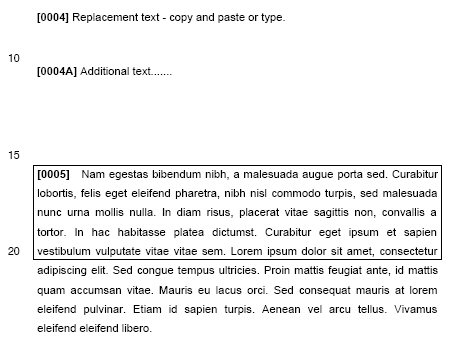
  1. First open the required page of your document. (Patent people may download their pages from the EPO’s Register Plus or the USPTO’s PAIR.)

    Test Page in Acrobat
    Test Page in Acrobat
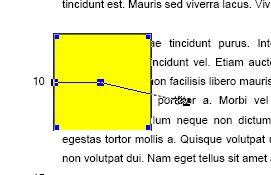
  2. Next select the “Callout Tool” editing option (e.g. Menu: Comments->Drawing Markup Tools->Callout Tool). Click the page somewhere near where you need to make the edit. A post-it-note box and arrow will appear.

    Callout Tool
    Callout Tool
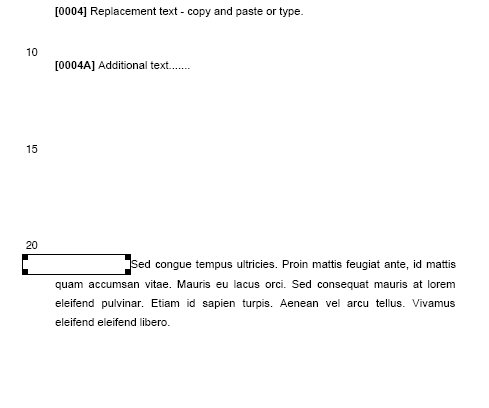
  3. Manipulate the arrow of the box so that it lies behind the text you wish to replace. Resize the yellow box until it covers the text you wish to replace.
    Move Arrow
    Move Arrow

    Adjust Box Size
    Adjust Box Size
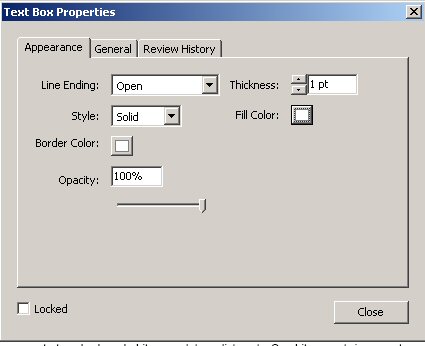
  4. Right-click on the box and select “Properties”. Change the “Border” and “Fill” colours to white. Click close.
    Right-click then Properties
    Right-click then Properties

    Change Colours
    Change Colours
  5. Double click in the box to start entering text.

    Enter Text
    Enter Text
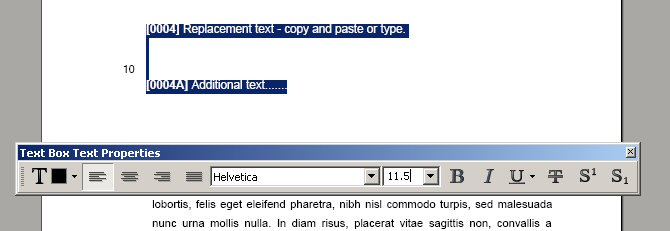
  6. To change the text properties (e.g. font size, bold, italics etc), when typing in the box press CTRL-E (Control key and letter E). A text properties tool bar will appear.

    Text Properties
    Text Properties
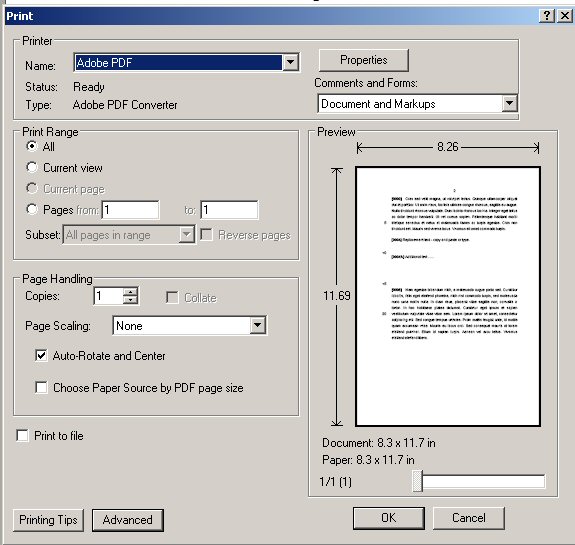
  7. Once you have made your edits, print the amended file to PDF. You can use Adobe’s or a third party’s PDF Printer Driver. This cements the changes and prevents future recipients from accessing and changing the text box.

    Print to PDF
    Print to PDF
  8. Patent people: you can now email the “printed” PDF page or use it for online filing. No paper is harmed at any point.

Masking Text

  1. Repeat step 1 above.
  2. Select the “Rectangle Tool”. (See a toolbar or Menu: Comments->Drawing Markup Tools->Drawing->Rectangle Tool).
  3. Draw a rectangle over the text you wish to mask.

    Draw Rectangle
    Draw Rectangle
  4. Right-click on the rectangle and select “Properties”. As in step 4 above change the “Border” and “Fill” colours to white. (The clever ones by now will have realised you can also use the toolbar that appeared when you pressed CTRL-E. They will rule us one day.)
  5. Repeat the above steps for any other portions of text to be masked.

    Lather, wash & Repeat
    Lather, wash & Repeat
  6. To cement the changes, print the edited page (or document) to PDF. (Beware: If you use this method to redact pages and do not print to PDF, any recipient can simply delete your nicely drawn rectangles to view the previous text.)

And that completes today’s lesson.

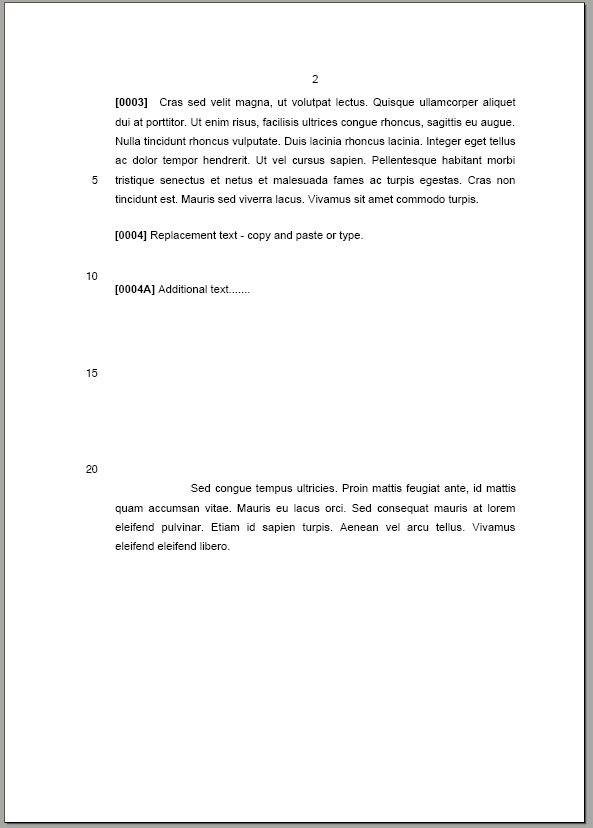
Edited Page
Edited Page

Adobe Acrobat for (IP) Lawyers – Tip #1

Most electronic file systems use Adobe Acrobat’s PDF format for official documents.  It is often useful to add text boxes to these documents; e.g. to add a signature box to certify that a scanned document is a true copy of an original.

One problem with at least versions 7 and 8 of Acrobat is that there is no obvious way to change the properties of the text in the text box. Luckily, the Acrobat User Forums (or more precisely a user named inixia) has the answer:

1. Select “Tools – Comment & Markup – Text Box Tool” [to add a text box];
2. Type any text within the text box and HIGHLIGHT it; and
3. Press CTRL + e (Control button and “e” at the same time).

A hidden “Text Box Text Properties” tool bar will appear allowing you to change the text properties.

Textbox Properties Tool Bar

When you unselect the text (e.g. by clicking on the edges of the text box) the newly-appeared tool bar also allows you to change the properties of the box itself (such as border/fill properties).

Four short links

Nominees for European Inventor Award 2010 : http://www.epo.org/topics/news/2010/20100308.html [No UK nominees with Germany having a presence in all categories apart from “Non European countries” – does this simply reflect a skew in the entries received or a real difference in innovation? Discuss.]

Sam Glover of Lawyerist reviews the Fujitsu Scansnap S1300: http://lawyerist.com/fujitsu-scansnap-s1300-portable-document-scanner/ [compare with his recommended S1500 – http://lawyerist.com/review-scansnap-s1500-document-scanner/].

Amazon One Click Shopping Patent survives re-examination – http://www.patentlyo.com/patent/2010/03/amazon-one-click-patent-slides-through-reexamination.html .

“Top” 25 US Patent Firms 2010 according to Intellectual Property Today: http://iptoday.com/issues/2010/03/top-patent-firms.asp .