Automating a Legal Workflow: Dealing with Patent Communications

Last time we looked at how certain legal processes could benefit from automation. Today we will identify some patent process examples.

This post (and the others in the series) may be useful for:

  • Patent attorneys wishing to automate their processes;
  • Software developers looking to develop legal products; or
  • Those who are interested in how patents work.

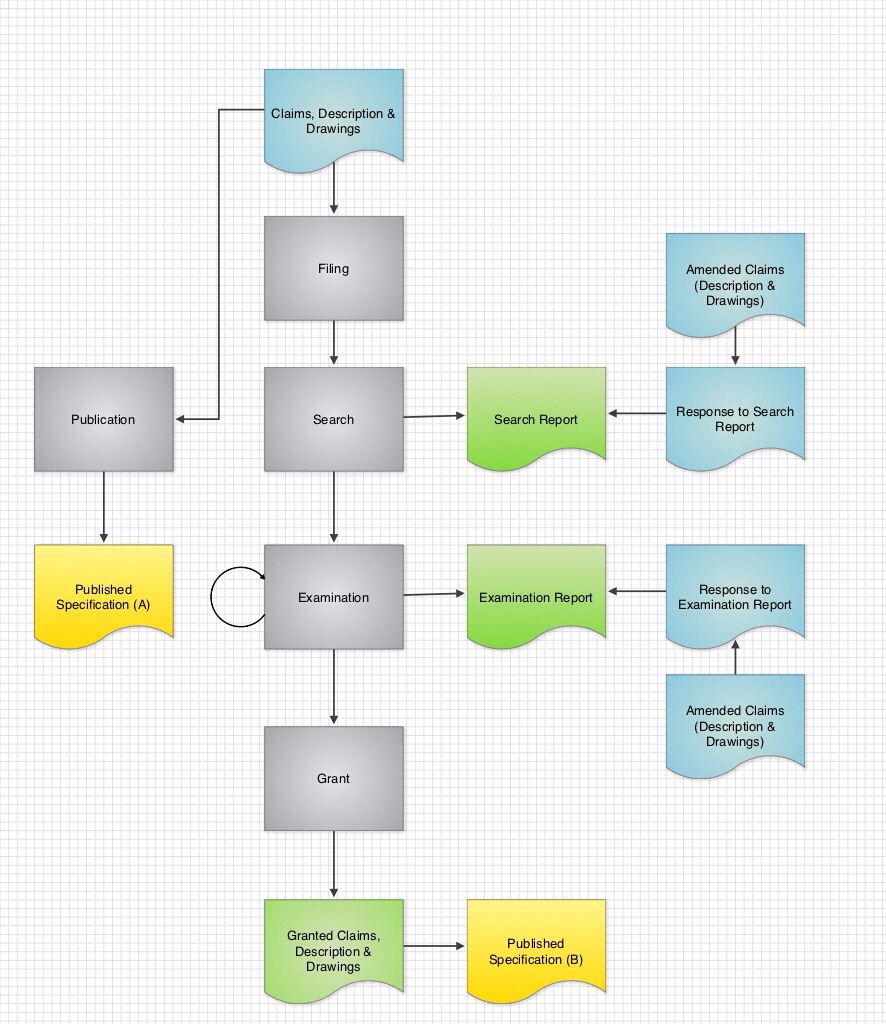
First let us have a look at a “vanilla” patent application. The process of applying for a patent looks something like this:
20131001-071717.jpg
The colour-coding is as follows:

  • Grey process blocks are performed in relation to a patent office (e.g. European Patent Office).
  • The blue documents are typically prepared by a patent attorney.
  • The green documents are prepared and issued by the patent office.

For now we will concentrate on the central blocks. Much of a patent attorney’s day-to-day work consists of reporting documents issued by patent offices and of preparing documents to file in response.

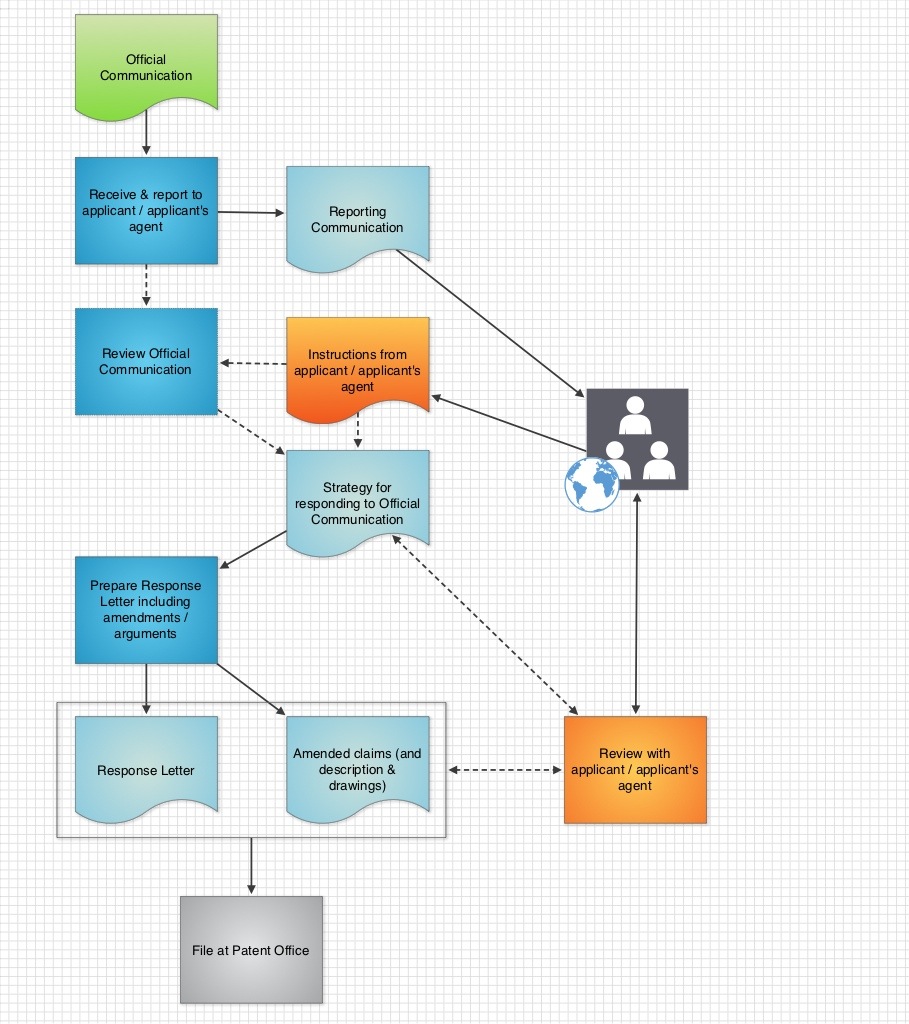
The search and each iteration of the examination go something like this:
20131002-184025.jpg

In my mind there are three areas in the above workflow where we could build an automated framework:

  • Initial brief review of objections by an attorney;
  • Detailed review of objections by attorney and development of a strategy to address the objections; and
  • The building of a response letter.

The reasons are:

  • To improve consistency, both for a single attorney and between attorneys;
  • To increase the chances of grant, by ensuring all outstanding objections are addressed;
  • To improve quality, by prompting an attorney for reasoning and basis;
  • To improve training, by embedding knowledge within the system and providing a guided path; and
  • To reduce stress, by providing a framework that ensures consistency and quality without requiring the attorney to remember to provide the framework; and
  • Last but not least, reduce attorney costs for clients by concentrating attorney time appropriately.

To start small, my aim is to build a web-based system for each of the three areas set out above. This system involves:

  • Creation of an XML document to store data;
  • Use of HTML forms to obtain data entered by an attorney;
  • Use of PHP to save obtained data as said XML document; and
  • Use of a letter-generation engine to generate letter text based on the XML document.

For example, a first stage may resemble the following flow diagram:
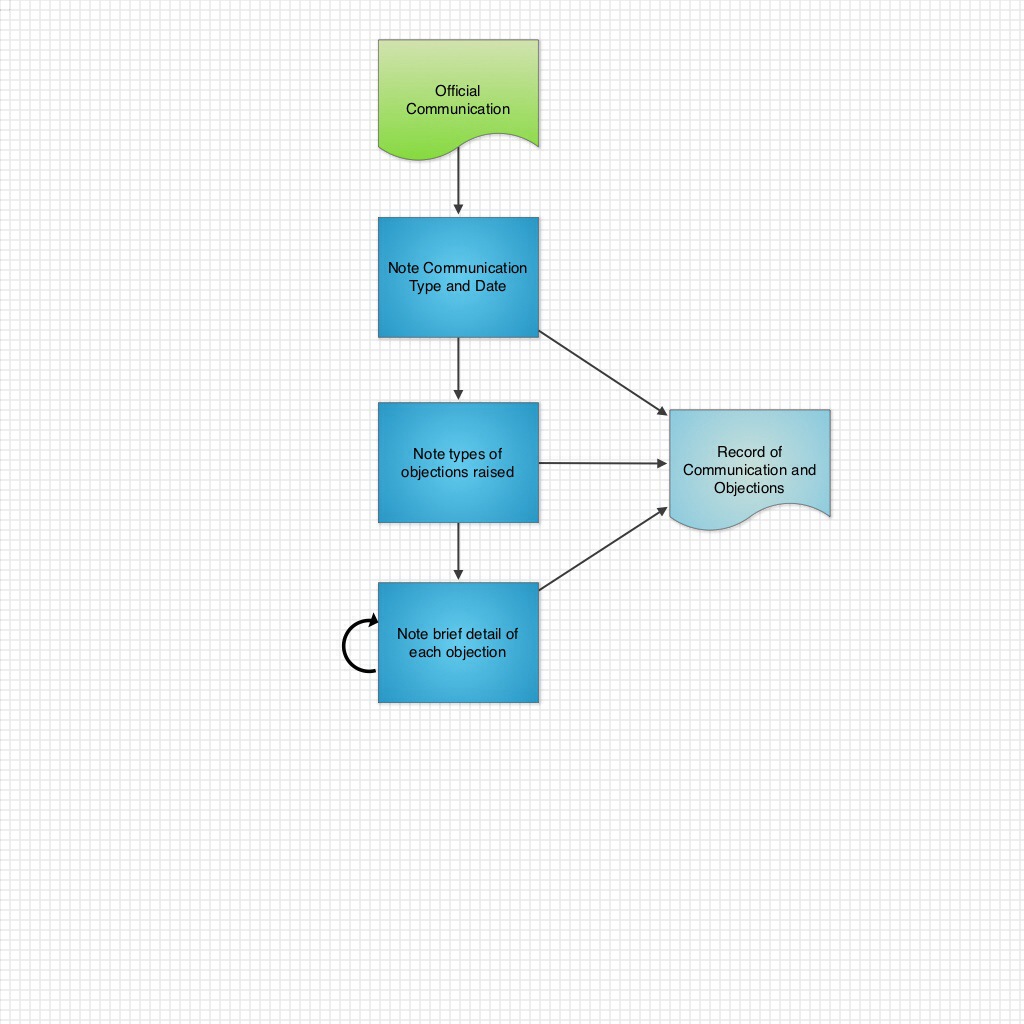
20131002-193447.jpg

The aim is that this should take no more than 10 minutes. Information is gathered that may serve as a framework for a detailed review. Also a brief review highlights anything that may need to be emphasised to an applicant (and avoids an attorney being negligent).

A web-form gathers data, which is stored as an XML document. A suggested DTD is as follows:

<!ELEMENT REVIEW (CASEREF, COMMUNICATION, COMM_DATE, OBJECTIONS)> <!-- ROOT ELEMENT-->
<!ELEMENT CASEREF (#PCDATA)>
<!ELEMENT COMMUNICATION (#PCDATA)>
<!ELEMEMT COMM_DATE (DATE)>
<!ELEMENT OBJECTIONS (OBJECTION*)>
<!ELEMENT OBJECTION (TYPE, COMMUNICATION, COMM_SECTION, APPLICATION_SECTION, LEGAL_PROVISION, REASON)>

<!ELEMENT COMM_SECTION (MAIN_NUMBER, PARA_NUMBER*)>

<!ELEMENT MAIN_NUMBER (NUMBER)>
<!ELEMENT PARA_NUMBER (NUMBER)>

<!ELEMENT APPLICATION_SECTION (CLAIM | DESCRIPTION)>

<!ELEMENT CLAIM (NUMBER)>
<!ELEMENT DESCRIPTION (PARAGRAPH+ | PORTION+)>
<!ELEMENT PORTION (START_LINE_NUMBER, END_LINE_NUMBER?, PAGE)>
<!ELEMENT START_LINE_NUMBER (NUMBER)>
<!ELEMENT END_LINE_NUMBER (NUMBER)>
<!ELEMENT PAGE (NUMBER)>

<!ELEMENT DATE (DAY, MONTH, YEAR)>
<!ELEMENT DAY (NUMBER)>
<!ELEMENT MONTH (NUMBER)>
<!ELEMENT YEAR (NUMBER)>

<!ELEMENT NUMBER (#PCDATA)>
<!ELEMENT REASON (#PCDATA)>
<!ELEMENT PARAGRAPH (#PCDATA)>
<!ELEMENT TYPE (#PCDATA)>

This results in an XML document similar to this:

<?xml version="1.0"?>
<review>
  <caseref>130929Test7</caseref>
  <communication>Article 94(3) EPC</communication>
  <comm_date>2013-09-29</comm_date>
  <objections>
    <objection entered="True">
      <type>unity</type>
      <comm_section>O</comm_section>
      <application_section>O</application_section>
      <legal_provision>O</legal_provision>
      <reason>Claims 1 and 5 do not share special technical features.<reason/>
    </objection>
    <objection entered="True">
      <type>sufficiency</type>
      <comm_section/>
      <application_section/>
      <legal_provision/>
      <reason/>
    </objection>
  </objections>
</review>

(Both are works in progress so forgive any inaccuracies.)

This generated XML document can then be used to produce a short sentence or two for a reporting letter or email. For example, something like:

The Examiner raises [No. of <objection> tags] objections: [list <objection><type> for each <objection>].

Under [first <objection><type>] ([<objection><legal_provision>]), the Examiner objections to [<objection><application_section>] on the grounds of [<objection><reason>].

Etc.

If and when instructions are received to review the communication in more detail, the XML document can be extended during the process below:
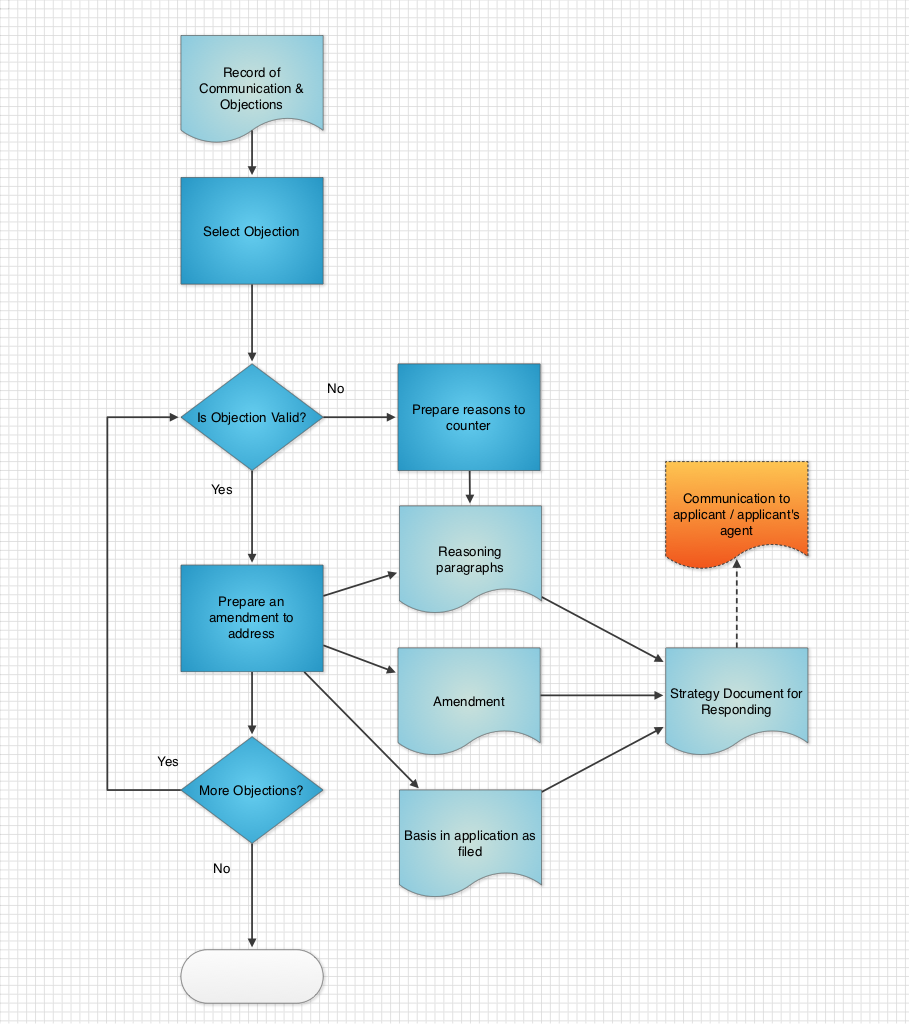
Detailed Review

Finally, the extended XML document can be processed by a letter generation engine (e.g. something built in PHP or Python) to generate text for a response letter:
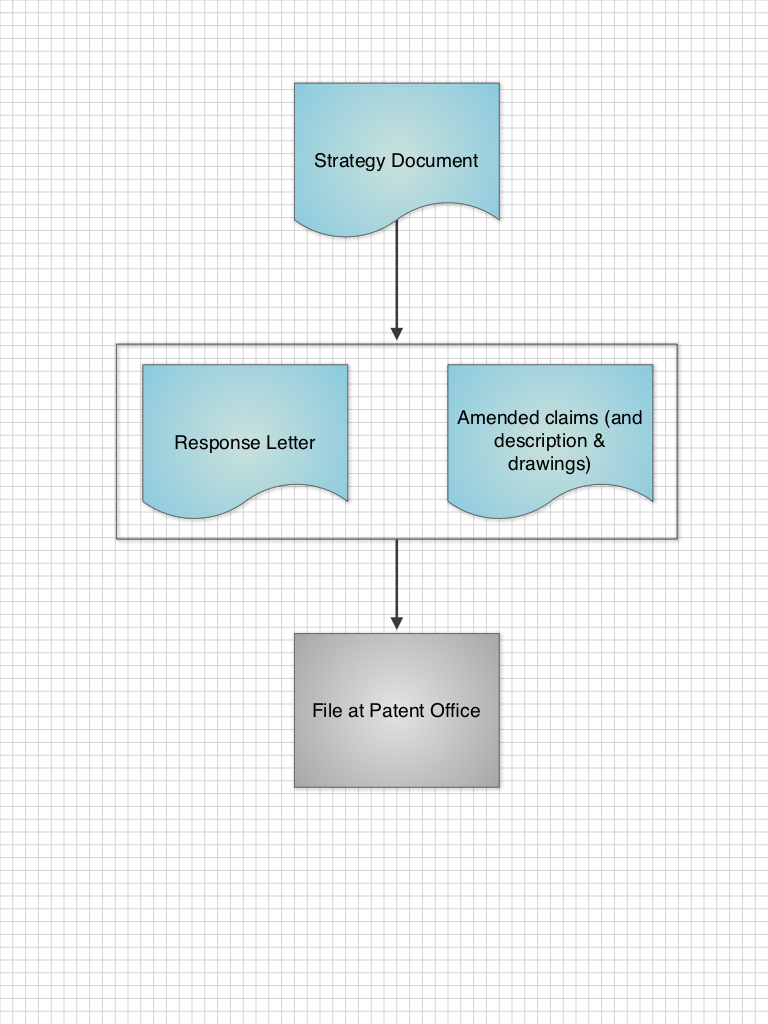
Letter Generation

This is all a work in progress so I will update you as I develop more. Any additional ideas or comments, please add them below.

(PS: if you like the charts see my previous post – Drawing Patent Figures on the iPad – they were drawn quickly in Grafio while giving the kids breakfast.)
Tip for Filing PCTs Online via EPO Software

PCT Filing Tip:
If you need to change the user reference on a case with a prepared Form 101 –
– Click on the case in the file view;
– Goto File > Export > Forms (this will export as a ZIP file);
– Unzip the ZIP somewhere findable;
– Goto File > Import > XML from Folder(s) – select the folder you just unzipped.

You should then get a chance to enter a new reference and the previous documents should be imported. (I think it also works by exporting as XML to Folders).

Social Media Management for Law Firms

So. You are part of a law firm. You need a little organisation for your “social media” presence. Here is a little guide setting out one way to do this based on my experience with my personal accounts.

8519896_s

There are probably better guides out there. Also this probably applies to non-law firms as much as law firms. However, the perspective of someone who has played around with it may be useful.

In the past I used TweetDeck. However, this is now largely decommissioned, having been assimilated into Twitter. The only real alternative I have found that is reasonably-priced and meets all the basic requirements is Hootsuite. It costs around £90/year for the “Pro” package.

What Do You Mean By “Social Media”?

“Social Media” is the trendy buzzword for a handful of “social” websites and web services. Here “social” generally means “communication between people”; it is a combination of publication and comment.

In my case “social media” refers to at least the following:

  • Twitter;
  • LinkedIn; and
  • Google+.

The unmentioned one is Facebook. This may be a bit too “social” for a law firm (although has possibilities from a recruitment perspective).

How Should I Setup Hootsuite?

After you have signed-up and paid for Hootsuite, log-in. The first step is then to setup your law firm as an “organization”. To do this follow the guide here: https://help.hootsuite.com/entries/21678723-creating-an-organization. For “organization name” I add the name of the law firm. As I am “on brand” I also add a firm logo. Leave the “add social networks” for now: we will do that later.

Once you have added the “organization” you should be able to see it when you click on the top menu button on the left-hand side menu bar. To add other people as managers and social networks click on the “Manage” button within the “organization” pane.

Adding Social Networks

On the right-hand-side of the lower pane there should be an “Add a Social Network” button. Use this to add accounts from the social networks discussed above. This typically requires you authorising yourself with each network so make sure you have your usernames and passwords handy.

After adding each social network select the next icon down in the left-hand side menu bar (“Streams”). Click on the little “+” icon at the top to add a new set of columns/streams (a “tab”).

At the moment I have one tab per social network/network feed. After adding the tab select the required social network from the dropdown box in the first “Add a stream” column that appears.

For Twitter my recommended streams are:

  • Home,
  • Mentions,
  • Retweets,
  • DMs, and
  • Sent Tweets.

If you want you can add all streams but five streams fit well across my monitor (you can use the little slider bar in the top right to reduce the number of columns/streams per tab).

For LinkedIn you are limited to “Company Updates” and “Scheduled Status Updates”.  For Google+, “Home”, “Sent Messages” and “Scheduled Messages” are options.

Now you can see all of your social media feeds in one handy place. You can also now post to any one of the added networks including the use of the “auto-scheduling” feature.

RSS to Update

A clever little feature of Hootsuite is that you can pipe an RSS/Atom feed through to a social network. Hence, if you have a blog you can automatically tweet new entries or post these to LinkedIn.

To set this up go to the cog (“Settings”) within the left-hand side menu. Choose the “RSS/Atom” option. Click on the “+” to add a new feed. Type in the URL of your blog (e.g. of your firm). Select a social media network to post to and set various frequency settings. Save and leave. Hey presto.

Further Lessons

Following these basics, the next stage is build a team and use search and assignment functions to get active. But that is the subject of another day’s post.

Any other tips please feel free to add to the comments.

Case Law Review – BL O/244/13

Case:

BL O/244/13

Claimed Subject Matter:

The invention relates to a method of synchronizing data, including representing messages as text or binary property list files (plist). The synchronization protocol provides for exchanges between a client and server in which separate sync modes (e.g. fast, slow, reset) are associated with different dataclasses and the dataclasses can be updated in parallel. This is achieved by proposing and agreeing the sync mode for each dataclass; sending sync-start, syncchanges and finally a sync-commit command between client and server.

Applicant: Apple Inc.

Claim 1 was directed to a server-side method and claim 10 was directed to the sychronization server.

Comments:

The alleged contribution was deemed to be:

Synchronizing data including initiating a sync session by receiving a request comprising a separate proposed sync mode for each of multiple data classes, specifying changes to data of the multiple data classes, using a status code to indicate whether the sync mode for each dataclass is accepted, in accordance with the sync mode for each dataclass, updating the data and selectively committing the changes, which means that a reduced number of messages is required to be transmitted. (Paragraph 23.)

The Hearing Officer deemed that the contribution was not a method for doing business as such:

The synchronised data may be ‘business data’, and the method of synchronising it may be performed in the course of business, but the contribution to data processing is broader, for example including the  provision and processing of sync modes and does not, to my mind, mean that the contribution falls within the category of a method for doing business as such. (Paragraph 25.)

However there was more debate as to whether the contribution was a computer program as such. To determine whether it was, the five signposts from AT&T (paragraph 40) were considered.

The Hearing Officer was not convinced that saving bandwidth by reducing a number of messages was an effect provided by a communication process outside of a computer. Instead, the number of messages was reduced inside the computer. Hence, the first signpost was not satisfied (see paragraph 29).

Reviewing the reasoning in relation to the second signpost, I believe this is most open to counter-argument. In paragraph 31, the Hearing Officer found that the effect was dependent on the type of data being processed: sync mode data. However, he also argued that the contribution was defined in terms of data processing and not the nature of the data being synchronised. In sum, the Hearing Officer is saying that the contribution is dependent on a particular type of control or metadata, but that the data it is applied to can be anything.  The Hearing Officer was of the opinion that this contra-indicates a technical contribution. I could disagree – the same reasoning could also be used to demonstrate compliance with the second signpost.

With regard to the third and fourth signposts the Hearing Officer concluded that the computer implementing the invention was not changed by the invention:

All that has changed is the number and format of the messages transmitted. (Paragraph 36.)

As such the fifth signpost was also answered in the negative. As none of the signposts indicated a technical contribution the Hearing Officer concluded that the invention was a computer program as such and the application was refused.

Without delving into the detailed facts of the case the decision seemed a bit harsh. It appears to follow reasoning similar to Hitachi (T 258/03) and apply it to subject matter that in my mind is more technical. It appears to follow similar recent decisions by the European Boards of Appeal that clamp down on the “relieves bandwidth by reducing messages” argument that is often applied in these cases.

One interesting question to consider is: would the decision have been the same if the independent claims covered a system of two entities, a client and a server? If the answer is yes then this appears unfair to parties that only supply one side of the communicating equipment.

The case does nicely illustrate how the UK Intellectual Property Office (IPO) evaluates patentable subject-matter. The framework displayed in the decision can be applied to most patentability cases at the UK IPO.

Drawing Patent Figures on the iPad

Patent Figures need to be simple. Most are drawn using one of the Microsoft triumvirate: Word, PowerPoint or Visio. These are neither perfect nor cheap. They also have limited support on mobile devices or other platforms. Here I will consider two alternatives.

Grafio for iPad

From a quick Google this appeared to be a high-ranking drawing app. It is £5.99 with additional small charges for extra shape sets (one at £2.99 and several below £1 – even if you bought all shape sets total cost is only around £15). Full version is: here. You can download a “Lite” version to play around with before buying.

20130827-071136.jpg

Pros
  • Gesture recognition – draw a shape and it will convert into the nearest standard.
  • PNG (with background transparency), JPG or PDF export.
  • Cheap – although £5.99 is “expensive” for iPad apps it is cheap as compared to desktop software licences (£££s for Microsoft products) or subscription services (see next product below).
  • Simple and clean user interface – navigation is very quick to learn and intuitive, much easier than Microsoft desktop products. There is a low cognitive burden on the user (as they say).
  • Auto-alignment and snap-to-grid work well – comparable to but somehow less crowded than PowerPoint 2013.
  • Selection of objects, grouping and ordering is a breeze – touch is much better than mouse input for this.
  • A4 sizes available.
  • Local storage.
Cons
  • Gesture recognition requires relatively precise drawing. I found this required relatively straight lines for a rectangle – many of my “rectangles” we’re converted into custom shapes rather than quadrilaterals. I did improve with practice though.
  • No editable export. However, I believe Visio export is on the feature wishlist and is in progress.
  • Possibly no auto-distribute (e.g. vertically for flow chart boxes).

LucidChart

I seem to look LucidChart every year. Previously I decided that the subscription model was too expensive for the limited number of advantages over the triumvirate. Also many of the features were overkill for patent Figures. However, a number of improvements merit a longer look this time.

20130827-074230.jpg

Pros
  • Cross platform support via the browser.
  • Offsite centralised storage.
  • Wireframing and user interface mock-ups useful for computer-implemented inventions.
  • iPad auto-shape recognition more robust than Grafio.
Cons
  • Price – a basic plan is £26/year ($40); a more useful plan with user interface wire framing and Visio import/export is £65 ($100). This is expensive for something I would not use everyday (cf. Spotify at £10/month and Netflix at £6/month).
  • “Cloud” storage – even though this is typically more secure than company email it is still seen as high-risk. It may thus be more difficult to obtain approval from IT for use.
  • No native iPad app – even though there should be no difference we all know that native apps offer better stability and features.  Update: There is now a native iPad app available. I will see if I can give it a run.
  • It was not clear how to change properties on the iPad web-interface (e.g. group items or change line types).

In the end Grafio wins out – mainly for simplicity and a good price/feature point. I am going to download it. If they proceed with improvements (SVG-out would be great) at the current pace, then it will only get better with time.

Automating a Legal Workflow – First Thoughts

Being an engineer by training (and at heart) I have always been a bit sceptical of those who say that the law cannot be automated. Yes, there will always be special cases in need of bespoke thinking, but these can be acknowledged within a system. As law involves the application of written rules + historical information, there is actually a large overlap with information and language theory.

Here are a few thoughts as I start looking at this myself. They may not all be “right” and may change as I go along but, hey, they might somehow be useful to someone.

Where to start?

As with most things a first step is conscious reflection. Attempt to look with fresh eyes and then perform a brain dump; this provides a good starting point. I normally do not worry about extensively documenting everything; this is impractical if not impossible. If you build any system in an agile, iterative and extendible manner you can refine later.

A great person to do this is an intern or new starter – most if not all within an organisation will assume that the way things are done is the way things can be done. This is why people hire management consultants (at large cost).

At this stage bullet points are good – they allow hierarchy to be captured. This naturally translates into most data structures.

Law: meet the Internet

I may be a bit Web 2.0 (or even Web 1.0) but web technologies are a good starting point for automation. HTML, XML, CSS, JavaScript, PHP are mature technologies specifically designed for document processing. They also have, at their heart, the separation of content from presentation – one thing every lawyer who uses Word needs to learn.

Another advantage of web technologies is you can quickly build prototypes and have everyone access them. They are also cheap, well-documented and easy – you can set up a web server on a mothballed PC using the LAMP framework (Linux, Apache, MySQL and PHP) with a few lines of command line code. Hell you can set up a system for a small business on a Raspberry Pi for £50 – silent and 3-5 Watts. This is how the Googles and Facebooks became so large so quickly.

Model Process in a Code-Friendly Manner

Next step is to iterate through your process brain dump adding some structure.

Pick out key events and triggers – model in flow diagrams.

Pick out key documents requiring input – model as bullet point hierarchies. Make a note of where input is actually required, what information may be stored already and how long each input takes to generate.

Think modules – try to separate process and documents into relatively independent elements – ideally each module or level should have 3-7 elements (reflecting the number we can hold in our minds at any one time). If you go above 10 elements – add another layer of hierarchy. It is easier for our brains to work at different layers of hierarchy, each layer having a few elements, and “drill down” than it is to have few layers with many elements per layer.

Pick the easiest modular subprocess. Start with this and prototype independently. Big systems hardly ever succeed (think of any public IT infrastructure). Document extensively – blog internally or externally – it is a great way to document and you get the marketing for free!

Go from the model of the subprocess and any documents to a web-workflow. Documents can become XML then HTML. Presentation can be dealt with later via CSS – concentrate first on functionality. Take key process functions and code-up computer equivalents (e.g. in PHP or other server backend – Python is good for quickly prototyping back-end function). I would avoid extensive database use at this stage – they have relatively high inertia – iterate at a flat-file level until things stabilise, at which point you can look at a database.

Anyway I will try to provide some examples shortly to make this all a little more concrete.

Immediate Refusal – When can the European Examining Division refuse an application?

Friday afternoon: office debate on the European Patent Convention (EPC).

The question that arose was: when should you request Oral Proceedings in a written response to the European Patent Office?

With the European Patent Office providing a form of “examination” at the search stage (the “Written Opinion”), it is now mandatory to respond to any objections raised therein before “examination” officially begins (via Rule 70a EPC). In this response should you request Oral Proceedings?

The question then becomes: can the Examining Division refuse a European patent application in the “first” examination communication under Article 94 EPC?

For

The case law that was laid down under the old rules (i.e. with no “Written Opinion”) held that a decision to refuse could legitimately be issued by the Examining Division as a second communication, i.e. no “further” communication under Article 94(3) EPC (nee Article 96(2) EPC 1973) was necessary. See the link for more details. This generally applied to cases where the applicant made no effort to address any objections raised in a first communication.

If these cases are applied to the present set of circumstances, where the “Written Opinion” is practically a first “examination” communication, it could be argued that the Examining Division can legitimately refuse the application without issuing an official examination communication (e.g. with a second communication relating to substantive issues). It could be argued that the right to be heard, set out in Art. 113 EPC is met, as the applicant had the chance (moreover had) to respond to the Rule 70a EPC communication.

However, if this is the case, and a request for Oral Proceedings is made in the response to the R.70a EPC communication, is the request made to the Examining Division or the Search Division? A request to the Search Division may not be valid as the Search Division cannot refuse the application. As the Examining Division “take account” of the response (see here), does this pass on the request in a valid manner?

Against

Article 94(3) EPC states that:

 “the Examining Division shall invite the applicant, as often as necessary, to file his observations and…to amend the application”.

Now the “shall” in this provision seems to suggest that at examination the applicant should have one opportunity to file observations and/or amend the application. This would rule out a decision to refuse as the first examination communication.

However, the “as often as necessary” complicates matters – if the applicant has not responded to substantive issues in a Written Opinion at the Rule 70a EPC stage, is it necessary to give them another chance? Does “as often as necessary” mean one or more times (consistent with “shall“) or does it make the “shall” conditional (zero or more times)?

If anyone is aware of any case law or guidance that clears this up please let me know.

European Designs for Ornamentation – Avoiding Unity of Class

It is possible to have a European multiple design application with designs in different Locarno classes. The conditions is that all the designs must relate to ornamentation.

(C) Puffinmuffin on WikiCommons

The Community Design Handbook and the OHIM Examination Guidelines refer to a “checkbox on the form” to indicate whether a design is ornamentation. However, this isn’t actually on the form (downloadable or online – D’OH).

However, I have been informed by OHIM that where you the product classes contain the word “ornamentation”, or where this is indicated in an accompanying description, you should not receive a unity of design objection even if you have different Locarno classes for multiple designs in a multiple design application.

See:

Article 37 Multiple applications

1. Several designs may be combined in one multiple application for registered Community designs. Except in cases of ornamentation, this possibility is subject to the condition that the products in which the designs are intended to be incorporated or to which they are intended to be applied all belong to the same class of the International Classification for Industrial Designs.

Guidelines (as above link):

8.2. Unity of Class (Art. 37(1) CDR)
Except in cases of ornamentation (see below) all products indicated for each and every design in a multiple application must fall in the same class of the Locarno Classification.

8.3. Ornamentation (Art. 37(1) CDR)
Ornamentation is an additional and decorative element capable of being applied to the surface of a variety of products without significantly affecting their contours.

In the case of a multiple application in which all designs are for ornamentation, the “unity of class” (see above) does not apply.

Whether an application concerns ornamentation or not is indicated by the applicant either by ticking the corresponding box in the form provided by the Office or by providing an equivalent information where the applicant uses his own form. The decision of the applicant is not subject to in-depth examination. However, an objection will be raised where prima facie the examiner has strong doubts as to whether the design is for ornamentation.

Taming the Inbox: Outlook Tasks

An unfortunate feature of modern life is a deluge of emails. Many emails require actions. However, it is easy for emails that require action to be lost in the black-hole of an inbox or mail folder.

A nice way to keep track of emails and actions is to use Outlook Tasks.

Generating a Task from an Email

When you get an email that requires an action right click on the email. Go down to “QuickSteps” and see if you have an “Assign as Task” option (or something similar).

If you do not have an “Assign as Task” QuickStep, create it using the following steps:
1) Right click – select “QuickSteps” – select “Create New”;
2) Name the QuickStep “Assign as Task” and select “Create a task with attachment” from the “Choose an Action” dropdown list; and
3) Click Finish.

Once you have an “Assign as Task” option, click it to convert the email into a task. If you have Remember the Milk you can then use “MilkSync” to sync the task to your todo list.

Assigning Tasks

You can also assign Tasks to other people. When the Task screen appears select “Assign Task” in the top tool bar / ribbon.

You can then type in an email address of a colleague, set a due date, a priority level and some text explaining the required action.

When you click “Send” the task is received and added to the recipient’s list of tasks. The original email is included as an attachment for reference.

The advantages to this are:
1) the recipient can keep track of the task (rather than have it drown in a sea of email);
2) the recipient has your instructions and the original email; and
3) the recipient knows how urgent the task is and can order by due date.

This can help a lot when organising team projects. (Or at least where Trello and RTM are a little too “early adopter” :.)

Online Patent Registers in United Kingdom, France and Germany

Many European patents are validated in United Kingdom (UK/GB), France (FR) and Germany (DE). This results in equivalent national patents in each of these countries. Obtaining status information on these individual national patents is getting easier everyday.

The European Patent Office is soon to release its “Federated Register”. This will allow you to access national patent registers via the European patent register. A new tab is provided on the left-hand side of the pre-existing European patent register to access this feature.

While we wait for the Federated Register you may find the following links useful:

Just enter the equivalent European patent publication number (e.g. EP1234567) in the “publication” field and off you go. I tend to print the displayed results to PDF to have a dated static record.

Update

A helpful colleague alerted me to an easier way to see the status of a European patent on the national registers.

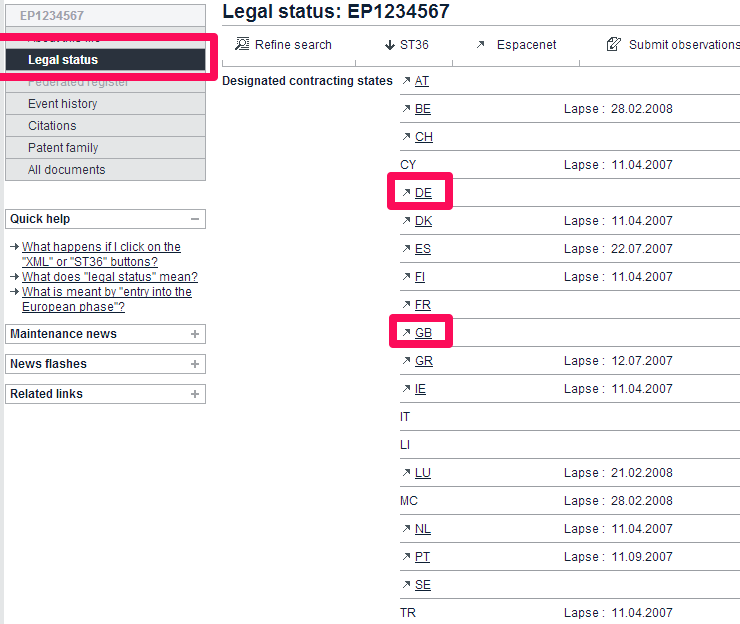
On the European Patent Register click “Legal Status” – you can then click on the countries to hyperlink to the appropriate national register.

Easy!
Easy!