A Dip in the Patent Information Seas (An EPO Online Patent Services Tutorial)

Over Christmas I had a chance to experiment with the European Patent Office’s Online Patent Services. This is a web service / application programming interface (API) for accessing the large patent databases administered by the European Patent Office. It has enormous potential.

To get to grips with the system I set myself a simple task: taking a text file of patent publication numbers (my cases), generate a pie chart of the resulting classifications. In true Blue Peter-style, here is one I made earlier (it’s actually better in full SVG glory, but WordPress.com do not support the format):

Classifications for Cases (in %)

Here is how to do it: –

Step 1 – Get Input

Obtain a text file of publication numbers. Most patent management systems (e.g. Inprotech) will allow you to export to Excel. I copied and pasted from an Excel column into a text file, which resulted in a list of publication numbers separated by new line (“\n”) elements.

Step 2 – Register

Register for a free EPO OPS account here: http://www.epo.org/searching/free/ops.html . About a day later the account was approved.

Step 3 – Add an App

Setup an “app” at the EPO Developer Portal. After registering you will receive an email with a link to do this. Generally the link is something like: https://developers.epo.org/user/[your no.]/apps. You will be asked to login.

Setup the “app” as something like “myapp” or “testing” etc.. You will then have access to a key and a secret for this “app”. Make a note of these. I copied and pasted them into an “config.ini” file of the form:

[Login Parameters]
C_KEY="[Copied key value]"
C_SECRET="[Copied secret value]"

Step 4 – Read the Docs

Read the documentation. Especially ‘OPS version 3.1 documentation – version 1.2.10 ‘. Also see this document for a description of the XML Schema (it may be easier than looking at the schema itself).

Step 5 – Authenticate

Now onto some code. First we need to use that key and secret to authenticate ourselves using OAuth.

I first of all tried urllib2 in Python but this was not rendering the POST payload correctly so I reverted back to urllib, which worked. When using urllib I found it easier to store the host and authentication URL as variables in my “config.ini” file. Hence, this file now looked like:

[Login Parameters]
C_KEY="[Copied key value]"
C_SECRET="[Copied secret value]"

[URLs]
HOST=ops.epo.org
AUTH_URL=/3.1/auth/accesstoken

Although object-oriented-purists will burn me at the stake, I created a little class wrapper to store the various parameters. This was initialised with the following code:

import ConfigParser
import urllib, urllib2
import httplib
import json
import base64
from xml.dom.minidom import Document, parseString
import logging
import time

class EPOops():

	def __init__(self, filename):
		#filename is the filename of the list of publication numbers

		#Load Settings
		parser = ConfigParser.SafeConfigParser()
		parser.read('config.ini')
		self.consumer_key = parser.get('Login Parameters', 'C_KEY')
		self.consumer_secret = parser.get('Login Parameters', 'C_SECRET')
		self.host = parser.get('URLs', 'HOST')
		self.auth_url = parser.get('URLs', 'AUTH_URL')

		#Set filename
		self.filename = filename

		#Initialise list for classification strings
		self.c_list = []

		#Initialise new dom document for classification XML
		self.save_doc = Document()

		root = self.save_doc.createElement('classifications')
		self.save_doc.appendChild(root)

The authentication method was then as follows:

def authorise(self):
		b64string = base64.b64encode(":".join([self.consumer_key, self.consumer_secret]))
		logging.error(self.consumer_key + self.consumer_secret + "\n" + b64string)
		#urllib2 method was not working - returning an error that grant_type was missing
		#request = urllib2.Request(AUTH_URL)
		#request.add_header("Authorization", "Basic %s" % b64string)
		#request.add_header("Content-Type", "application/x-www-form-urlencoded")
		#result = urllib2.urlopen(request, data="grant_type=client_credentials")
		logging.error(self.host + ":" + self.auth_url)

		#Use urllib method instead - this works
		params = urllib.urlencode({'grant_type' : 'client_credentials'})
		req = httplib.HTTPSConnection(self.host)
		req.putrequest("POST", self.auth_url)
		req.putheader("Host", self.host)
		req.putheader("User-Agent", "Python urllib")
		req.putheader("Authorization", "Basic %s" % b64string)
		req.putheader("Content-Type" ,"application/x-www-form-urlencoded;charset=UTF-8")
		req.putheader("Content-Length", "29")
		req.putheader("Accept-Encoding", "utf-8")

		req.endheaders()
		req.send(params)

		resp = req.getresponse()
		params = resp.read()
		logging.error(params)
		params_dict = json.loads(params)
		self.access_token = params_dict['access_token']

This results in an access token you can use to access the API for 20 minutes.

Step 6 – Get the Data

Once authentication is sorted, getting the data is pretty easy.

This time I used the later urllib2 library. The URL was built as a concatenation of a static look-up string and the publication number as a variable.

The request uses an “Authentication” header with a “Bearer” variable containing the access token. You also need to add some error handling for when your allotted 20 minutes runs out – I looked for an error message mentioning an invalid access token and then re-performed the authentication if this was detected.

I was looking at “Biblio” data. This returned the classifications without the added overhead of the full-text and claims. The response is XML constructed according to the schema described in the Docs above.

The code for this is as follows:

def get_data(self, number):
		data_url = "/3.1/rest-services/published-data/publication/epodoc/"
		request_type = "/biblio"
		request = urllib2.Request("https://ops.epo.org" + data_url + number + request_type)
		request.add_header("Authorization", "Bearer %s" % self.access_token)
		try:
			resp = urllib2.urlopen(request)
		except urllib2.HTTPError, error:
			error_msg = error.read()
			if "invalid_access_token" in error_msg:
				self.authorise()
				resp = urllib2.urlopen(request)

		#parse returned XML in resp
		XML_data = resp.read()
		return XML_data

Step 7 – Parse the XML

We now need to play around with the returned XML. Python offers a couple of libraries to do this, including Minidom and ElementTree. ElementTree is preferred for memory-management reasons but I found that the iter() / getiterator() methods to be a bit dodgy in the version I was using, so I fell back on using Minidom.

As the “Biblio” data includes all publications (e.g. A1, A2, A3, B1 etc), I selected the first publication in the data for my purposes (otherwise there would be a duplication of classifications). To do this I selected the first “<exchange-document>” tag and its child tags.

As I was experimenting, I actually extracted the classification data as two separate types: text and XML. Text data for each classification, simply a string such as “G11B  27/    00            A I”, can be found in the  “<classification-ipcr>” tag. However, when looking at different levels of classification this single string was a bit cumbersome. I thus also dumped an XML tag – “<patent-classification>” – containing a structured form of the classification, with child tags for “<section>”, “<class>”, “<subclass>”, “<main-group>” and “<subgroup>”.

My function saved the text data in a list and the extracted XML in a new XML string. This allowed me to save these structures to disk, more so I could pick up at a later date without continually hitting the EPO data servers.

The code is here:

def extract_classification(self, xml_str):
		#extract the  elements
		dom = parseString(xml_str)
		#Select first publication for classification extraction
		first_pub = dom.getElementsByTagName('exchange-document')[0]
		self.c_list = self.c_list + [node.childNodes[1].childNodes[0].nodeValue for node in first_pub.getElementsByTagName('classification-ipcr')]

		for node in first_pub.getElementsByTagName('patent-classification'):
			self.save_doc.firstChild.appendChild(node)

Step 8 – Wrap It All Up

The above code needed a bit of wrapping to load the publication numbers from the text file and to save the text list and XML containing the classifications. This is straightforward and shown below:

def total_classifications(self):
		number_list = []

		#Get list of publication numbers
		with open("cases.txt", "r") as f:
			for line in f:
				number_list.append(line.replace("/","")) #This gets rid of the slash in PCT publication numbers

		for number in number_list:
			XML_data = self.get_data(number.strip())
			#time.sleep(1) - might want this to be nice to EPO 🙂
			self.extract_classification(XML_data)

		#Save list to file
		with open("classification_list.txt", "wb") as f:
			f.write("\n".join(str(x) for x in self.c_list))

		#Save xmldoc to file
		with open("save_doc.xml", "wb") as f:
			self.save_doc.writexml(f)

Step 9 – Counting

Once I have the XML data containing the classifications I wrote a little script to count the various classifications at each level for charting. This involved parsing the XML and counting unique occurrences of strings representing different levels of classification. For example, level “section” has values such as “G”, “H”. The next level, “class”, was counted by looking at a string made up of “section” + “class”, e.g. “G11B”. The code is here:

from xml.dom.minidom import parse
import logging, pickle, pygal
from pygal.style import CleanStyle

#create list of acceptable tags - tag_group - then do if child.tagName in tag_group

#initialise upper counting dict
upper_dict = {}

#initialise list of tags we are interested in
tags = ['section', 'class', 'subclass', 'main-group', 'subgroup']

with open("save_doc.xml", "r") as f:
	dom = parse(f)

#Get each patent-classification element
for node in dom.getElementsByTagName('patent-classification'):
	#Initialise classification string to nothing
	class_level_val = ""
	logging.error(node)
	#for each component of the classification
	for child in node.childNodes:
		logging.error(child)
		#Filter out "text nodes" with newlines
		if child.nodeType is not 3 and len(child.childNodes) > 0:

			#Check for required tagNames - only works if element has a tagName
			if child.tagName in tags:

				#if no dict for selected component
				if child.tagName not in upper_dict:
					#make one
					upper_dict[child.tagName] = {}
				logging.error(child.childNodes)

				#Get current component value as catenation of previous values
				class_level_val = class_level_val + child.childNodes[0].nodeValue

				#If value is in cuurent component dict
				if class_level_val in upper_dict[child.tagName]:
					#Increment
					upper_dict[child.tagName][class_level_val] += 1
				else:
					#Create a new entry
					upper_dict[child.tagName][class_level_val] = 1

print upper_dict
#Need to save results
with open("results.pkl", "wb") as f:
	pickle.dump(upper_dict, f)

The last lines print the resulting dictionary and then save it in a file for later use. After looking at the results it was clear that past the “class” level the data was not that useful for a high-level pie-chart, there were many counts of ‘1’ and a few larger clusters.

Step 10 – Charting

I stumbled across Pygal a while ago. It is a simple little charting library that produces some nice-looking SVG charts. Another alternative is ‘matlibplot‘.

The methods are straightforward. The code below puts a rim on the pie-chart with a breakdown of the class data.

#Draw pie chart
pie_chart = pygal.Pie(style=CleanStyle)
pie_chart.title = 'Classifications for Cases (in %)'

#Get names of different sections for pie-chart labels
sections = upper_dict['section']

#Get values from second level - class
classes = upper_dict['class']
class_values = classes.keys() #list of different class values

#Iterate over keys in our section results dictionary
for k in sections.keys():
 #check if key is in class key, if so add value to set for section

 #Initialise list to store values for each section
 count_values = []
 for class_value in class_values:
 if k in class_value: #class key - need to iterate from class keys
 #Add to list for k
 #append_tuple = (class_value, classes[class_value]) - doesn't work
 count_values.append(classes[class_value])
 #count_values.append(append_tuple)
 pie_chart.add(k, count_values)

pie_chart.render_to_file('class_graph.svg')

That’s it. We now have a file called “class_graph” that we can open in our browser. The result is shown in the pie-chart above, which shows the subject-areas where I work. Mainly split between G and H. The complete code can be found on GitHub: https://github.com/benhoyle/EPOops.

Going Forward

The code is a bit hacky, but it is fairly easy to refine into a production-ready method. Options and possibilities are:

  • Getting the data from a patent management system directly (e.g. via an SQL connection in Python).
  • Adding the routine as a dynamic look-up on a patent attorney website – e.g. on a Django or Flask-based site.
  • Look up classification names using the classification API.
  • The make-up of a representative’s cases would change fairly slowly (e.g. once a week for an update). Hence, you could easily cache most of the data, requiring few look-ups of EPO data (the limit is 2.5GB/week for a free account).
  • Doing other charting – for example you could plot countries on Pygal’s world map.
  • Adapt for applicants / representatives using EPO OPS queries to retrieve the publication numbers or XML to process.
  • Looking at more complex requests, full-text data could be retrieved and imported into natural language processing libraries.

Can You Mine Patent [Big] Data at Home?

Possibly. Let’s give it a go.

Big data - from DARPA

Data

In my experience, no one has quite realised how amazing this link is. It is a hosting (by Google) of bulk downloads of patent and trademark data from the US Patent and Trademark Office.

Just think about this for a second.

Here you can download images of most commercial logos used between 1870(!) and the present day. Back in the day, doing image processing and machine learning, I would have given my right arm for such a data set.

Moreover, you get access (eventually) to the text of most US patent publications. Considering there are over 8 million of these, and considering that most new and exiting technologies are the subject of a patent application, this represents a treasure trove of information on human innovation.

Although we are limited to US-based patent publications this is not a problem. The US is the world’s primary patent jurisdiction – many companies only patent in the US and most inventions of importance (in modern times) will be protected in the US. At this point we are also not looking at precise legal data – the accuracy of these downloads is not ideal. Instead, we are looking at “Big Data” (buzzword cringe) – general patterns and statistical gists from “messy” and incomplete datasets.

Storage

Initially, I started with 10 years worth of patent publications: 2001 to 2011. The data from 2001 onwards is pretty reliable; I have been told the OCR data from earlier patent publications is near useless.

An average year is around 60 GBytes of data (zipped!). Hence, we need a large hard drive.

You can pick up a 2TB external drive for about £60. I have heard they crash a lot. You might want to get two and mirror the contents using rsync.

[Update: command for rsync I am using is:

rsync -ruv /media/EXTHDD1/'Patent Downloads' /media/EXTHDD2/'Patent Downloads'

where EXTHDD1 and EXTHDD2 are the two USB disk drives.]

Flashgot
Flashgot

Download

I have an unlimited package on BT Infinity (hurray!). A great help to download the data is a little Firefox plugin called FlashGot. Install it, select the links of the files you want to download, right-click and choose “Flashgot” selection. This basically sets off a little wget script that gets each of the links. I set it going just before bed – when I wake up the files are on my hard-drive.

The two sets of files that look the most useful are the 2001+ full-text archives or the 2001+ full-text and embedded images. I went for 10 years worth of the latter.

Folders (cc: Shoplet Office Supplies)

Data Structure

The structure of the downloaded data is as follows:

  • Directory: Patent Downloads
    • Directory: [Year e.g. 2001] – Size ~ 65GB
      • [ZIP File – one per week – name format is date e.g. 20010607.ZIP] – Size ~ 0.5GB
        • Directory: DTDS [Does what it says of the tin – maybe useful for validation but we can generally ignore for now]
        • Directory: ENTITIES [Ditto – XML entities]
        • Directories: UTIL[XXXX] [e.g. UTIL0002, UTIL0003 – these contain the data] – Size ~ 50-100MB
          • [ZIP Files – one per publication – name format is [Publication Number]-[Date].ZIP e.g. US20010002518A1-20010607.ZIP] – Size ~ 50-350KB
            • [XML File for the patent publication data – name format is [Publication Number]-[Date].XML e.g. US20010002518A1-20010607.XML] – Size ~ 100Kb
            • [TIF Files for the drawings –  name format is [Publication Number]-[Date]-D[XXXXX].TIF where XXXXX is the drawing number e.g. US20010002518A1-20010607-D00012.TIF] – Size ~20kB

[Update: this structure varies a little 2004+ – there are a few extra layers directories between the original zipped folder and the actual XML.]

The original ZIPs
The original ZIPs

ZIP Files & Python

Python is my programming language of choice. It is simple and powerful. Any speed disadvantage is not really felt for large scale, overnight batch processing (and most modern machines are well up to the task).

Ideally I would like to work with the ZIP files directly without unzipping the data. For one-level ZIP files (e.g. the 20010607.ZIP files above) we can use the ‘zipfile‘, a built-in Python module. For example, the following short script ‘walks‘ through our ‘Patent Downloads’ directory above and prints out information about each first-level ZIP file.

import os
import zipfile
import logging
logging.basicConfig(filename="processing.log", format='%(asctime)s %(message)s')

exten = '.zip'
top = "/YOURPATH/Patent Downloads"

def print_zip(filename):
	print filename
	try:
		zip_file = zipfile.ZipFile(filename, "r")
		# list filenames

		for name in zip_file.namelist():
			print name,
		print

		# list file information
		for info in zip_file.infolist():
			print info.filename, info.date_time, info.file_size

	except Exception, ex:
		#Log error
		logging.exception("Exception opening file %s") %filename
		return

def step(ext, dirname, names):
	ext = ext.lower()

	for name in names:
		if name.lower().endswith(ext):
			print_zip(str(os.path.join(dirname, name)))

# Start the walk
os.path.walk(top, step, exten)

This code is based on that helpfully provided at PythonCentral.io. It lists all the files in the ZIP file. Now we have a start at a way to access the patent data files.

However, more work is needed. We come up against a problem when we hit the second-level of ZIP files (e.g. US20010002518A1-20010607.ZIP). These cannot be manipulated again recursively with zipfile. We need to think of a way around this so we can actually access the XML.

As a rough example of the scale we are taking about – a scan through 2001 to 2009 listing the second-level ZIP file names took about 2 minutes and created a plain-text document 121.9 MB long.

Next Time

Unfortunately, this is all for now as my washing machine is leaking and the kids are screaming.

Next time, I will be looking into whether zip_open works to access second-level (nested) ZIP files or whether we need to automate an unzip operation (if our harddrive can take it).

We will also get started on the XML processing within Python using either minidom or ElementTree.

Until then…

Existential [Trainee] Priority Crisis

Every so often you get a case that needs to be filed on the last day of the one-year priority periodHowever, when this happens you need to know how long a year is. 

“FOOL!” You may shout.

But no, does a one-year period include or exclude a day of a starting event? I.e. if you file a first application on 1 January 2013, do you have until 1 January 2014 INCLUSIVE to file a priority-claiming application? Or must the priority-claiming application be filed BY 1 January 2014 EXCLUSIVE, i.e. by 31 December 2013? Trainees may stumble here.

Confusingly the patent legislation in Europe and UK is not entirely helpful. To get an answer you need to go old skool: back to 1883 and the Paris Convention for the Protection of Intellectual Property.

More precisely, Article 4, paragraph C, clause 2 averts your crisis:

C.

(1) The periods of priority referred to above shall be twelve months for patents and utility models, and six months for industrial designs and trademarks.

(2) These periods shall start from the date of filing of the first application; the day of filing shall not be included in the period.

Hurray! We can file on 1 January 2014.

How to Avoid PDF Patent Filing Errors

This is hopefully a solution to a problem that has driven me mad for years.

When attaching PDF documents you often see errors from patent online filing software. For PCT applications a usual one is that a set of PDF Figures are not ‘Annex F compliant’ or the page numbers are not calculated properly.

One way around this is to use the Amyuni PDF printer driver that is supplied with the European Patent Office online filing software. However, this also tends to garble a PDF document .

I think there is another, better way:
– Choose to print the document.
– Select an AdobePDF ‘printer’ (assuming you have an Acrobat print driver installed).
– Select the ‘properties’ of this printer.
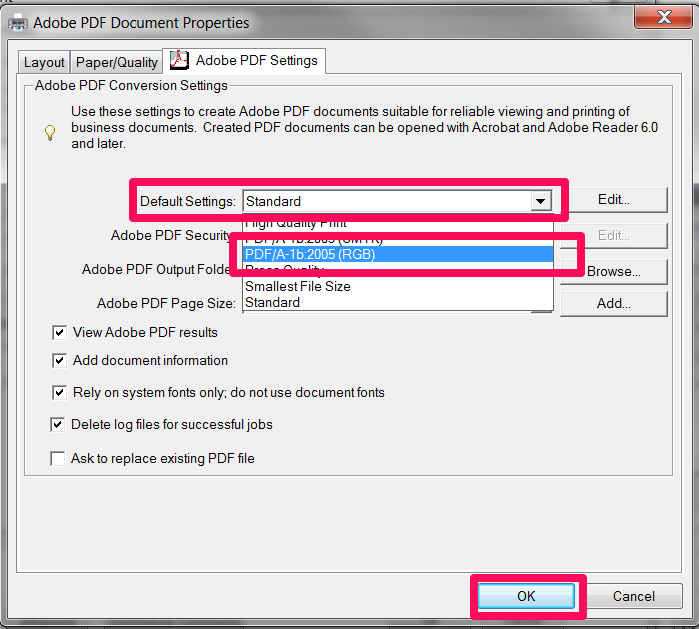
– Where it says “Default Settings” change “Standard” to one of the “PDF/A” options.
– Also, while you are here, click the “Paper/Quality” tab and select “Black & White”.
– Click OK and print.
The document should then print (better than the Amyuni driver). You should then be able to upload it without errors and it should pass the online filing validation checks. 

AdobeError2


Update: My US colleagues advise that for US Patent Office compliance CutePDF is recommend – http://www.cutepdf.com/ .

Quick Search Hack for European Patent Application Numbers

On official communications from the European Patent Office (EPO) the application number is listed in the form: 13123456.9.

However, to search for this patent application on the European Register you need to use:  EP13123456 – i.e. you need to add EP and remove the check digit.  

This is often a pain. It is especially a pain if you have performed optical character recognition on a scanned-in communication. In this case you cannot copy the application number directly from the PDF into the European Register search bar.

A quick solution (until the EPO fix it): this little bit of HTML and Javascript.

<!DOCTYPE HTML>
<html>
<head>
<meta charset="utf-8">
<title>EP Quick Search</title>

<script>
function changeNumber()
{
	var n = document.getElementById("number");
	var number = n.value;
	var start = "EP";
	var end_of_num = number.length-2;
	number = start.concat(number.substring(0, end_of_num));
	url = "https://register.epo.org/application?number=";
	url = url.concat(number, "&tab=main");
	window.open(url, '_blank')
}
</script>
</head>

<body>
<input type="textbox" id="number" value=""/>
<button onclick="changeNumber()">GO!</button>
</body>
</html>

Save this as an HTML file on your computer and add it as a favourite. Now just paste the application number in the box and search!

[To do – extend to GB and WO online patent registers.]

European Divisional Applications: Sanity Prevails

Huzzah.

The Administrative Council of the European Patent Office has decided to accept a change to Rule 36 EPC to remove the 24-month time limit for filing divisional applications.

Update: The actual decision has now been published and can be found here: http://www.epo.org/law-practice/legal-texts/official-journal/ac-decisions/archive/20131024a.html .

A draft of the decision is set out below:

Article 1
The Implementing Regulations to the EPC shall be amended as follows:

1. Rule 36(1) shall read as follows:

“(1) The applicant may file a divisional application relating to any pending earlier European patent application.”

2. The following paragraph 4 shall be added to Rule 38:

“(4) The Rules relating to Fees may provide for an additional fee as part of the filing fee in the case of a divisional application filed in respect of any earlier application which is itself a divisional application.”

3. Rule 135(2) shall read as follows:

“(2) Further processing shall be ruled out in respect of the periods referred to in Article 121, paragraph 4, and of the periods under Rule 6, paragraph 1, Rule 16, paragraph 1(a), Rule 31, paragraph 2, Rule 36, paragraph 2, Rule 40, paragraph 3, Rule 51, paragraphs 2 to 5, Rule 52, paragraphs 2 and 3, Rules 55, 56, 58, 59, 62a, 63, 64 and Rule 112, paragraph 2.”
Article 2

1. This decision shall enter into force on 1 April 2014.
2. It shall apply to divisional applications filed on or after that date.

The proposals are described in more detail in this document kindly circulated by the President of the European Patent Insititute.

Basically, Rule 36(1) EPC reverts back to its old form – from 1 April 2014 you will be able to file divisional applications as long as the parent application is still pending. [Subject to the caveat that an official version of the decision is yet to be published.]

Extra charges are being introduced, but these will only apply to divisionals of divisionals (i.e. “second generation divisional applications”). The exact charges have not been decided yet.

Although some will cry “u-turn” (not European Patent Attorneys though, we are all too polite), it is good to see the Administrative Council listen to feedback from users of the current system and act accordingly.

Feedback

Out of 302 responses received to a survey in March 2013 only about 7% sympathised with the current system. The negative consequences of the current system are clear:

It requires applicants to decide too early whether to file divisional applications (146 responses), e.g. before being sure of their interest in the inventions or their viability, prior to the possible emergence of late prior art, before having had the opportunity to dispute a non-unity objection, or even before being sure of the subject-matter for which (unitary) patent protection will be sought. Thus, the applicant is forced to file precautionary divisionals, thereby increasing the costs associated with prosecution (143 responses).

The time limits have not met their objectives (102 responses), since there has been no reduction in the number of divisionals, legal certainty has not increased, long sequences of divisionals are still possible, or there has been no acceleration of examination.

The time limits are complex and difficult to monitor, creating an additional burden and further costs for applicants and representatives (89 responses).

The negative effects of the introduced time limits are increased by the slow pace of examination (82 responses).

To address these consequences, the message from users was also clear: 65% voted for the reinstatement of the previous Rule 36 EPC. To their credit, it appears that the Administrative Council has done just that.

Reading between the lines it seems that enquiries from users of the system regarding the 24-month time limit and its operation were also causing a headache for the European Patent Office.

More Divisionals After Refusal?

An interesting aside is that it appears G1/09 is gaining ground. The document prepared for the Administrative Council stated:

This practice [of filing divisional applications before oral proceedings], though, has lost most of its basis since the Enlarged Board of Appeal issued its decision G 1/09 on 27 September 2010, in which it came to the conclusion that a European patent application which has been refused by a decision of the Examining Division is thereafter still pending within the meaning of Rule 25 EPC 1973 (current Rule 36(1) EPC) until the expiry of the time limit for filing a notice of appeal.

Consequently, applicants may file divisional applications after refusal of the parent application, without the need to resort to precautionary filings before oral proceedings

These “zombie” divisional applications always gave me the creeps – I would prefer to file before refusal. It will be interesting to see whether the practice of filing divisional applications in the notice of appeal period will now increase.

Don’t Slip Up: New ‘Annual’ European Patent Examination Guidelines

This sneaked under my radar so I will post it here. The European Guidelines for Examination are now revised annually. The most recent version was issued on 20 September 2013.

Details of the updates and a link to the most recent Guidelines can be found here: – http://www.epo.org/law-practice/legal-texts/official-journal/information-epo/archive/20130920.html

As highlights:

A nice little trick is that there is now a “track changes” style “show modifications” checkbox on the HTML Guidelines site. This shows the recent edits.

Just be careful: if you refer to a PDF copy, it would be easy to slip up by looking at the wrong edition. My tip is to use the HTML where you can.

Quick Tip: Sorting Page Number Location for European Patent Applications

One of my little bugbears is that the European rules (R.49(6) EPC) require a page number to be located at the top of a page:

Rule 49(6) EPC – All the sheets contained in the application shall be numbered in consecutive Arabic numerals. These shall be centred at the top of the sheet, but not placed in the top margin.

whereas the Patent Cooperation Treaty (PCT) rules (Rule 11.7 PCT) allow a page number to be placed at the top or bottom of a page:

11.7 Numbering of Sheets

(a) All the sheets contained in the international application shall be numbered in consecutive Arabic numerals.

(b) The numbers shall be centered at the top or bottom of the sheet, but shall not be placed in the margin.

This becomes annoying when you have to file translations or amendments at the European Patent Office (EPO), as these should follow European rules.

This means I often find myself needing to swap from bottom page numbers to top page numbers.  This is fine when you have a Word document  but trickier when all you have are PDF documents. However, there is a trick to swap from bottom to top page numbers.

  1. Open the PDF document.
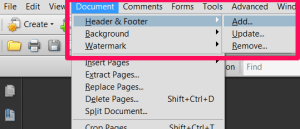
  2. In Adobe 9 – go to the top menu – ‘Document’ > ‘Header & Footer’ > ‘Add…’. Add header
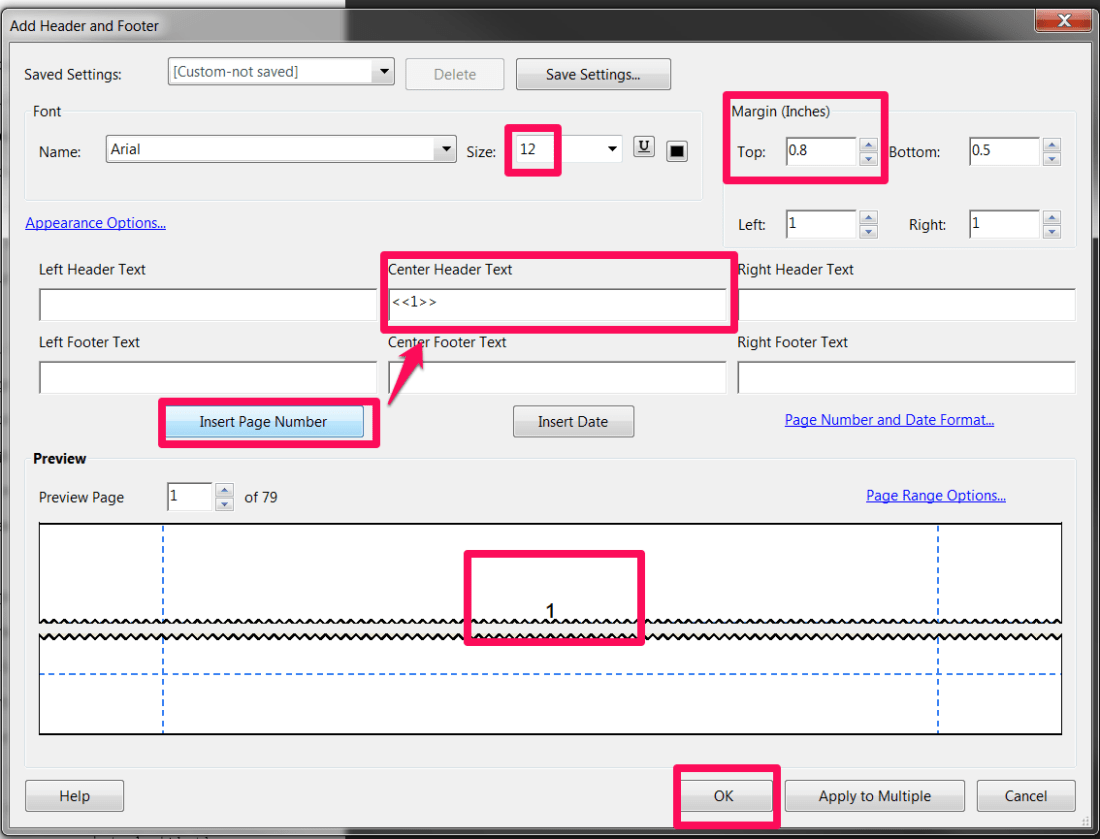
  3. Add a top header with a central page number. As the page number needs to be outside the top margin, the top margin needs to be set to at least 2cm (0.8 inches). The font size should be at least 12. Check the preview and click OK.Add header options
  4. Now to remove the existing bottom numbers. Using the top menu add another header/footer. Add header
  5. Don’t replace the existing header – click Add New.
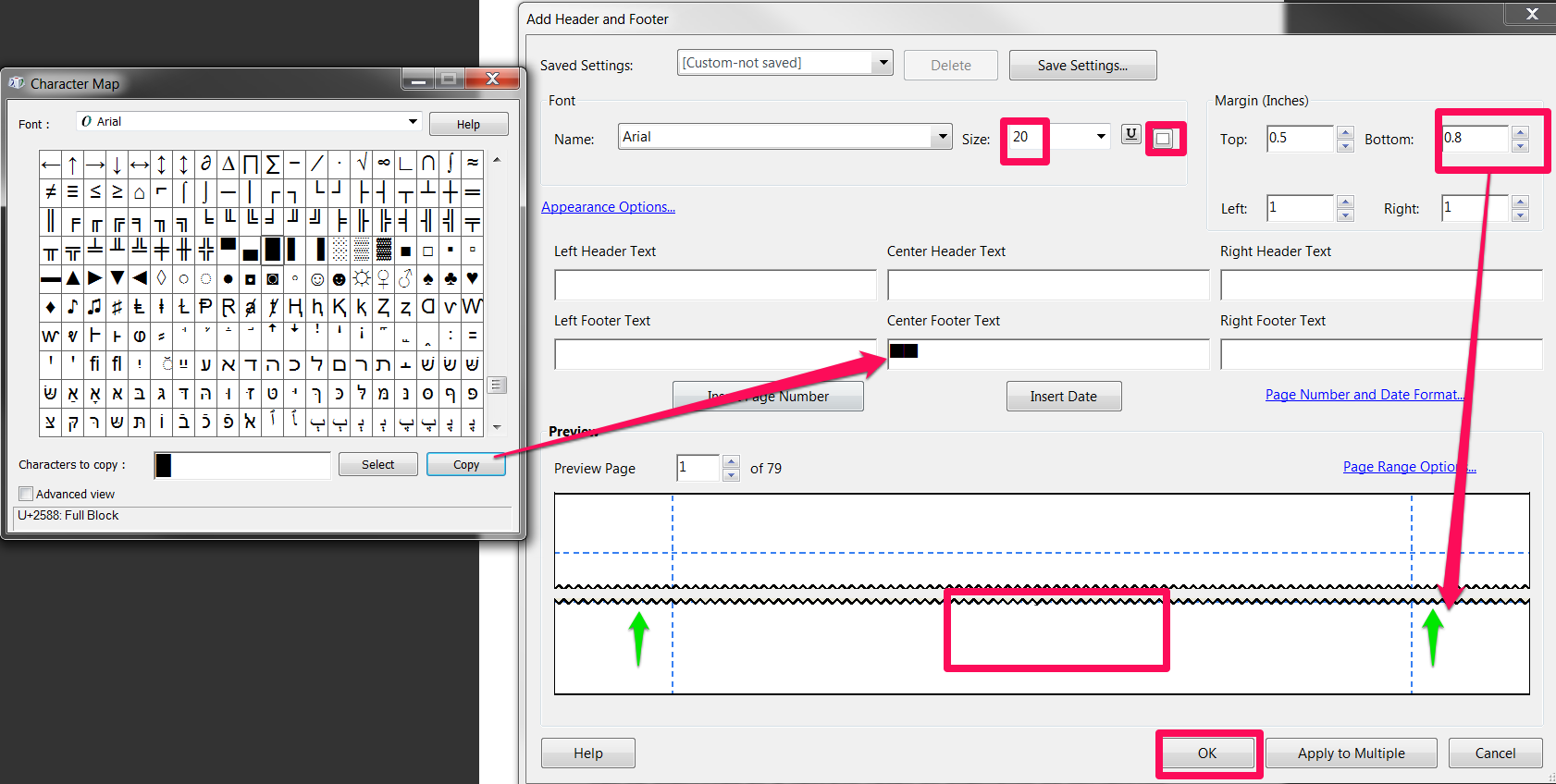
  6. Now here comes the trick – select a ‘full block’ character using Character Map (a Windows system tool). Change the text colour to white and select a largish font size (e.g. 20+). Now copy a few of the ‘full block’ characters to the center footer. Then adjust the size of the bottom margin so the ‘full block’ characters obscure the existing page number.add new footer
  7. There you go – now compliant with European practice. To ‘fix’ the changes ‘print’ the PDF file (e.g. using the EPO-supplied Amyuni PDF printer). If you save the header and footer settings you can recall them easily.

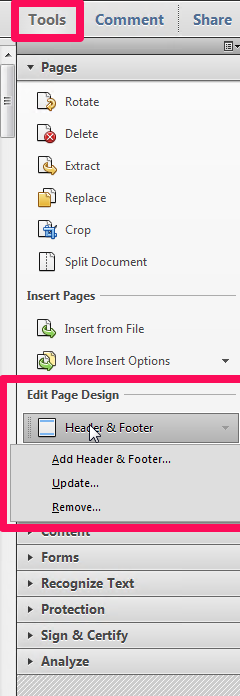
[Bonus tip: On Adobe Acrobat X (10) they have irritatingly moved most of the top menu options to a right-hand-side “Tools” menu. Use this to select header-footer options as below.]

Adobe X

Automating a Legal Workflow: Dealing with Patent Communications

Last time we looked at how certain legal processes could benefit from automation. Today we will identify some patent process examples.

This post (and the others in the series) may be useful for:

  • Patent attorneys wishing to automate their processes;
  • Software developers looking to develop legal products; or
  • Those who are interested in how patents work.

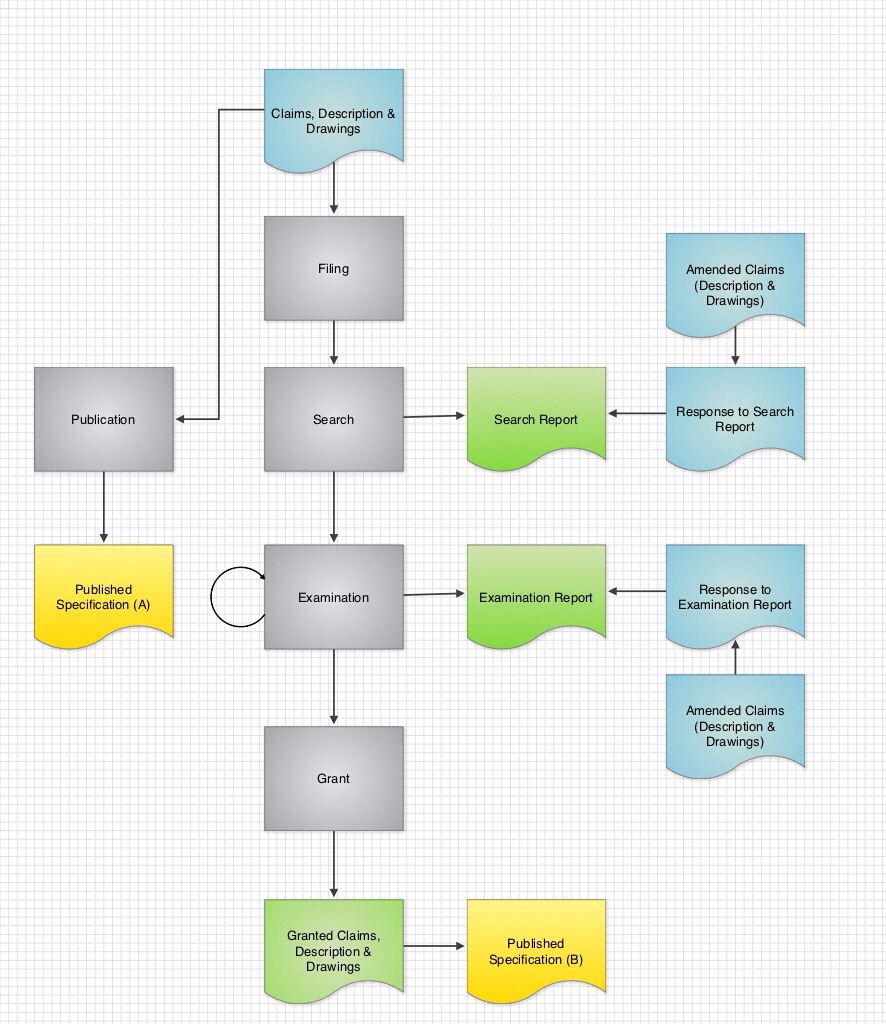
First let us have a look at a “vanilla” patent application. The process of applying for a patent looks something like this:

20131001-071717.jpg
The colour-coding is as follows:

  • Grey process blocks are performed in relation to a patent office (e.g. European Patent Office).
  • The blue documents are typically prepared by a patent attorney.
  • The green documents are prepared and issued by the patent office.

For now we will concentrate on the central blocks. Much of a patent attorney’s day-to-day work consists of reporting documents issued by patent offices and of preparing documents to file in response.

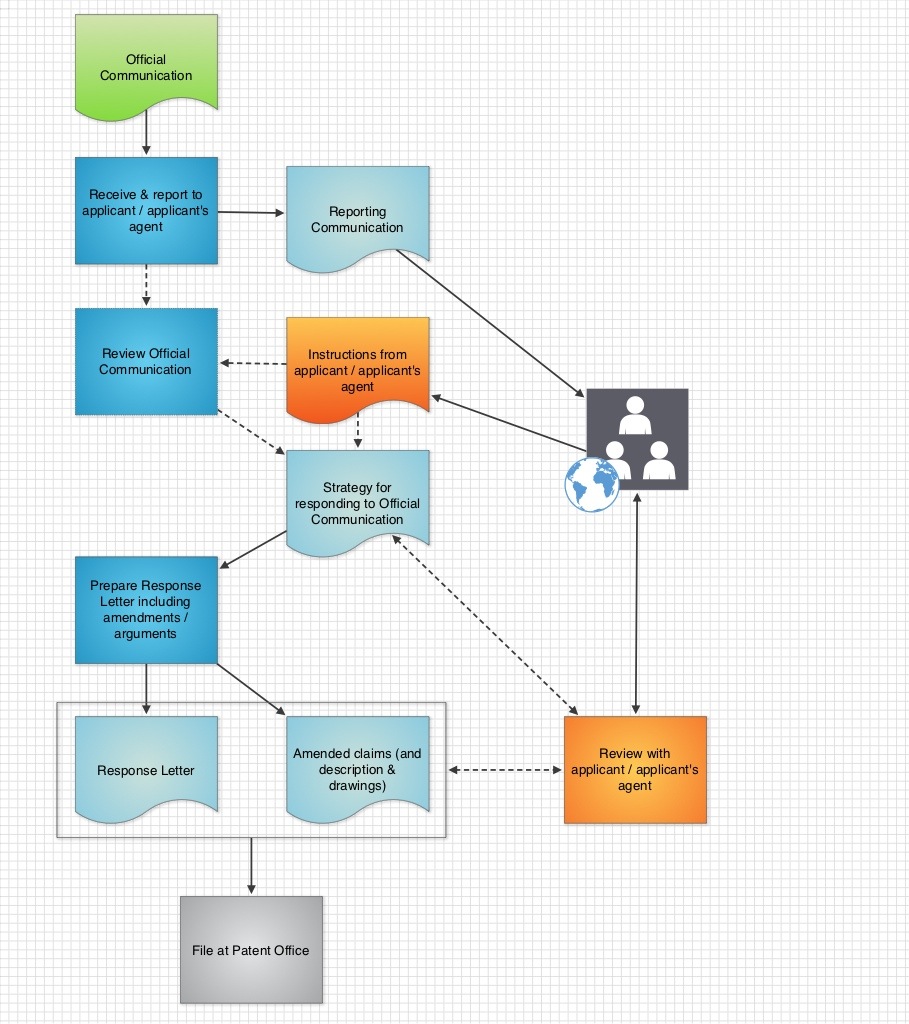
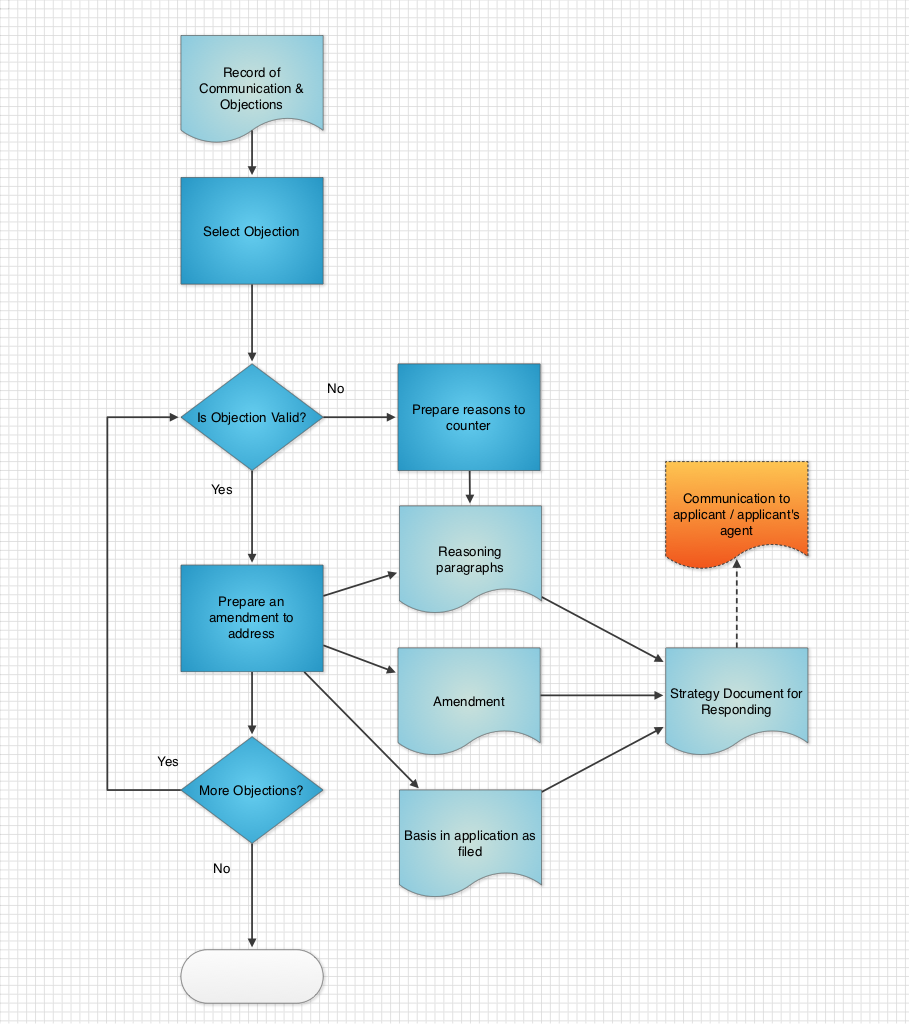
The search and each iteration of the examination go something like this:

20131002-184025.jpg

In my mind there are three areas in the above workflow where we could build an automated framework:

  • Initial brief review of objections by an attorney;
  • Detailed review of objections by attorney and development of a strategy to address the objections; and
  • The building of a response letter.

The reasons are:

  • To improve consistency, both for a single attorney and between attorneys;
  • To increase the chances of grant, by ensuring all outstanding objections are addressed;
  • To improve quality, by prompting an attorney for reasoning and basis;
  • To improve training, by embedding knowledge within the system and providing a guided path; and
  • To reduce stress, by providing a framework that ensures consistency and quality without requiring the attorney to remember to provide the framework; and
  • Last but not least, reduce attorney costs for clients by concentrating attorney time appropriately.

To start small, my aim is to build a web-based system for each of the three areas set out above. This system involves:

  • Creation of an XML document to store data;
  • Use of HTML forms to obtain data entered by an attorney;
  • Use of PHP to save obtained data as said XML document; and
  • Use of a letter-generation engine to generate letter text based on the XML document.

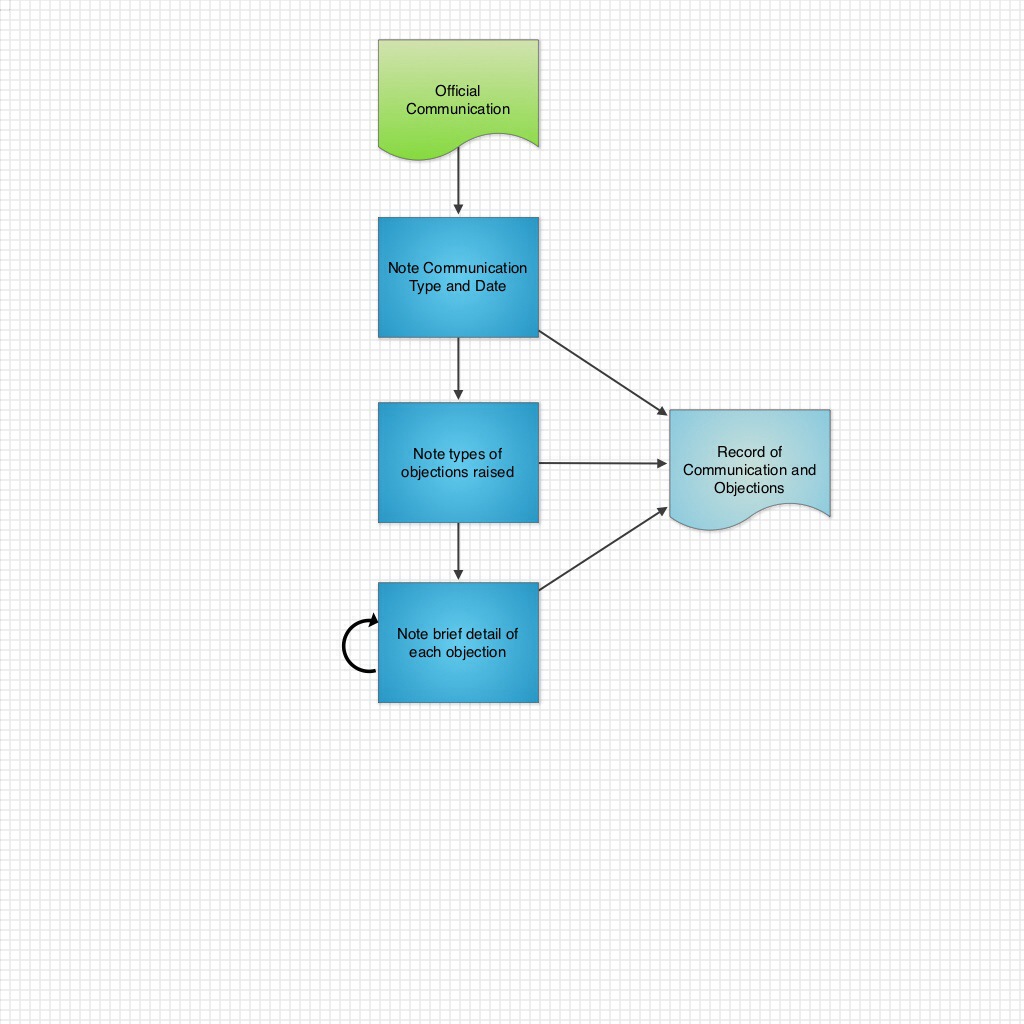
For example, a first stage may resemble the following flow diagram:

20131002-193447.jpg

The aim is that this should take no more than 10 minutes. Information is gathered that may serve as a framework for a detailed review. Also a brief review highlights anything that may need to be emphasised to an applicant (and avoids an attorney being negligent).

A web-form gathers data, which is stored as an XML document. A suggested DTD is as follows:

<!ELEMENT REVIEW (CASEREF, COMMUNICATION, COMM_DATE, OBJECTIONS)> <!-- ROOT ELEMENT-->
<!ELEMENT CASEREF (#PCDATA)>
<!ELEMENT COMMUNICATION (#PCDATA)>
<!ELEMEMT COMM_DATE (DATE)>
<!ELEMENT OBJECTIONS (OBJECTION*)>
<!ELEMENT OBJECTION (TYPE, COMMUNICATION, COMM_SECTION, APPLICATION_SECTION, LEGAL_PROVISION, REASON)>

<!ELEMENT COMM_SECTION (MAIN_NUMBER, PARA_NUMBER*)>

<!ELEMENT MAIN_NUMBER (NUMBER)>
<!ELEMENT PARA_NUMBER (NUMBER)>

<!ELEMENT APPLICATION_SECTION (CLAIM | DESCRIPTION)>

<!ELEMENT CLAIM (NUMBER)>
<!ELEMENT DESCRIPTION (PARAGRAPH+ | PORTION+)>
<!ELEMENT PORTION (START_LINE_NUMBER, END_LINE_NUMBER?, PAGE)>
<!ELEMENT START_LINE_NUMBER (NUMBER)>
<!ELEMENT END_LINE_NUMBER (NUMBER)>
<!ELEMENT PAGE (NUMBER)>

<!ELEMENT DATE (DAY, MONTH, YEAR)>
<!ELEMENT DAY (NUMBER)>
<!ELEMENT MONTH (NUMBER)>
<!ELEMENT YEAR (NUMBER)>

<!ELEMENT NUMBER (#PCDATA)>
<!ELEMENT REASON (#PCDATA)>
<!ELEMENT PARAGRAPH (#PCDATA)>
<!ELEMENT TYPE (#PCDATA)>

This results in an XML document similar to this:

<?xml version="1.0"?>
<review>
  <caseref>130929Test7</caseref>
  <communication>Article 94(3) EPC</communication>
  <comm_date>2013-09-29</comm_date>
  <objections>
    <objection entered="True">
      <type>unity</type>
      <comm_section>O</comm_section>
      <application_section>O</application_section>
      <legal_provision>O</legal_provision>
      <reason>Claims 1 and 5 do not share special technical features.<reason/>
    </objection>
    <objection entered="True">
      <type>sufficiency</type>
      <comm_section/>
      <application_section/>
      <legal_provision/>
      <reason/>
    </objection>
  </objections>
</review>

(Both are works in progress so forgive any inaccuracies.)

This generated XML document can then be used to produce a short sentence or two for a reporting letter or email. For example, something like:

The Examiner raises [No. of <objection> tags] objections: [list <objection><type> for each <objection>].

Under [first <objection><type>] ([<objection><legal_provision>]), the Examiner objections to [<objection><application_section>] on the grounds of [<objection><reason>].

Etc.

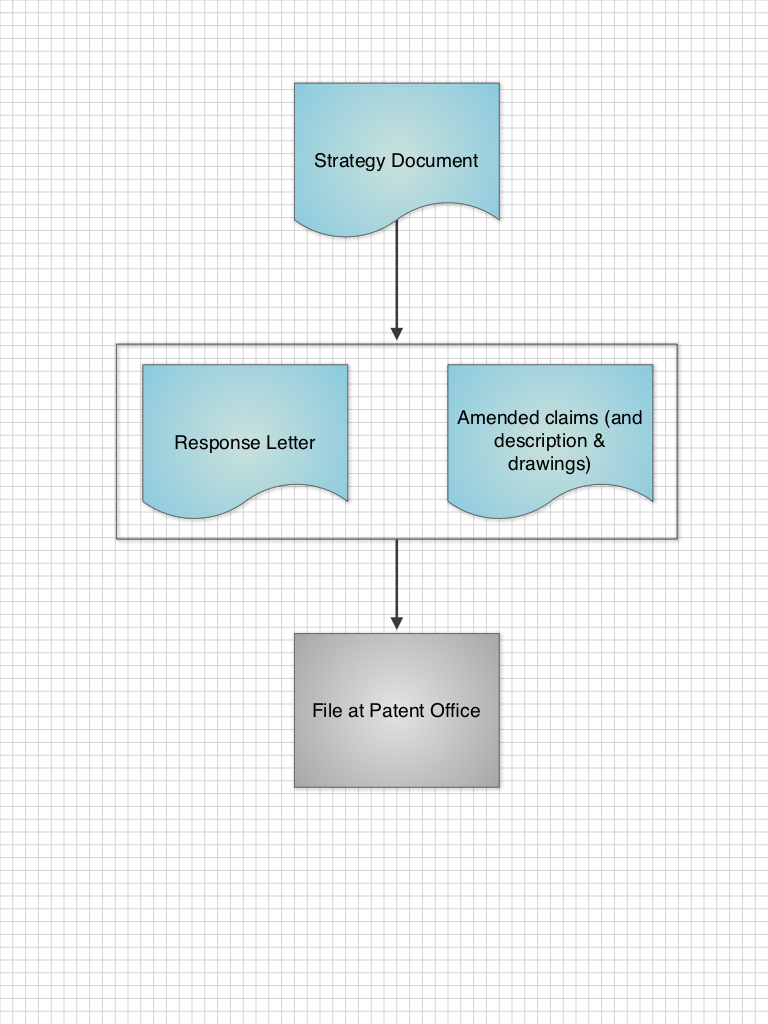
If and when instructions are received to review the communication in more detail, the XML document can be extended during the process below:
Detailed Review

Finally, the extended XML document can be processed by a letter generation engine (e.g. something built in PHP or Python) to generate text for a response letter:
Letter Generation

This is all a work in progress so I will update you as I develop more. Any additional ideas or comments, please add them below.

(PS: if you like the charts see my previous post – Drawing Patent Figures on the iPad – they were drawn quickly in Grafio while giving the kids breakfast.)

Tip for Filing PCTs Online via EPO Software

PCT Filing Tip:
If you need to change the user reference on a case with a prepared Form 101 –
– Click on the case in the file view;
– Goto File > Export > Forms (this will export as a ZIP file);
– Unzip the ZIP somewhere findable;
– Goto File > Import > XML from Folder(s) – select the folder you just unzipped.

You should then get a chance to enter a new reference and the previous documents should be imported. (I think it also works by exporting as XML to Folders).