Existential [Trainee] Priority Crisis

Every so often you get a case that needs to be filed on the last day of the one-year priority periodHowever, when this happens you need to know how long a year is. 

“FOOL!” You may shout.

But no, does a one-year period include or exclude a day of a starting event? I.e. if you file a first application on 1 January 2013, do you have until 1 January 2014 INCLUSIVE to file a priority-claiming application? Or must the priority-claiming application be filed BY 1 January 2014 EXCLUSIVE, i.e. by 31 December 2013? Trainees may stumble here.

Confusingly the patent legislation in Europe and UK is not entirely helpful. To get an answer you need to go old skool: back to 1883 and the Paris Convention for the Protection of Intellectual Property.

More precisely, Article 4, paragraph C, clause 2 averts your crisis:

C.

(1) The periods of priority referred to above shall be twelve months for patents and utility models, and six months for industrial designs and trademarks.

(2) These periods shall start from the date of filing of the first application; the day of filing shall not be included in the period.

Hurray! We can file on 1 January 2014.

6 Quick Tips for Social Media Success

The link-bait title is only half tongue-in-cheek.

Last night I attended a great little seminar on improving business-to-business social media use run by Bath and Bristol Marketing Network [I cheated a little – it’s a network for “marketing professionals” rather than “marketing amateurs”]. The speakers were Noisy Little Monkey – a digital marketing agency [who I now respect even more knowing they have an office in Shepton Mallet].

The main points that filtered through my fatigued post-5.30pm brain were:

  1. Identify your audience.
  2. Use images/graphics as well as text.
  3. Plan, test, measure, evaluate, repeat.
  4. Social media is not about conversion
  5. Identify the Twitter geeks who are going to push your content.
  6. Use editorial and event calendars to generate a content plan for a year.
Social Media Drives Growth!
CC: mkhmarketing

Here’s some more detail:

Identify your audience

  • Even better, categorise it.
  • Identify 5-10 groups and write a half-page “persona” for each group.
  • E.g. Michael Smith – manager of a software company – 45 – lives in Hereford with 2 kids.
  • Bear these “personas” in mind when writing content.

Use images/graphics as well as text

Plan, test, measure, evaluate, repeat

  • The tools are there – e.g. X Analytics, Twitter analysis tools like FollowerWonk etc. – build evidence and base strategy on it.
  • Prepare a monthly report that gives traffic/demographic/content statistics.
  • Systematically experiment with variations on format and content and use the above statistics to evaluate. E.g. What topics pique interest? Do images actually make a difference to engagement and sharing?

Social media is not about conversion

  • Sales come from phone calls, website visits, face-to-face encounters. Social media is the noise that pushes people into the sales funnel. It does work.
  • That said the pressure on pushy sales is removed.
  • Educating and entertaining become more important.

Identify the Twitter geeks who are going to push your content

  • As in most things, only 1-5% of a group actually drives conversations.
  • For example, on Twitter there are key individuals that are followed by many – if you were looking to get exposure work out what they like and what makes them tick. Find out what their interests are to aim content at them for retweets, comments and blog conversations.
  • You can identify individuals using tools – you can sort by individuals who have a large number of followers in areas you operate in who are likely to retweet URLs.

Use editorial and event calendars to generate a content plan for a year

  • You might know when IP events are going to be held. You might know when technology events are to be held. You can  plan your content (e.g. blog posts) around these.
  • Also you can find out magazine and newspaper editorial calendars (just google “magazine name” + “editorial calendar”) – you can have a yearly plan of when articles are published and fit blog articles into this.

Automated Law: Simple Claim Breakdown Function

Patent attorneys: we care about the independent claims. An independent claim is a paragraph of text that defines an invention. Each invention has a number of discrete features. Can I build a function to spilt a claim into its component features?

The answer is possibly. Here is one way I could go about doing it.

First I would start with a JavaScript file: claimAnalysis.js. I would link this to an HTML page: claimAnalysis.html. This HTML page would have a large text box to copy and paste the text of an independent claim.

On a keyup() or onchange() event I would then run the following algorithm:

  • Get text as from text box as a string.
  • Set character placemarker as 0.
  • From placemarker, find character from set of character:s [“,”, “:”, “;”,”-” or new line].
  • Store characters from 0 to found character index as string in array.
  • Repeat last two steps until “.” or end of text.

From this we should have a rough breakdown of a claim into feature string arrays. It will not be perfect but it would make a good start.

We can then show each located string portion in the array to a user. For example, with JavaScript we can add a table within a form containing input text boxes in rows. Each text box can contain a string portion. We can also add a checkbox to each portion or table row.

The user can then be offered “spilt” or “join” option buttons.

  • “Split” requires only one selection.
  • The user is told to place the cursor/select text in the box where they want the split to occur (using selectionStart property?).
  • Two features are then created based on the cursor position or selected text.
  • “Join” requires > 1 features to be selected via the checkboxes.
  • All selected features are combined into one string portion in one text box which replaces the previous text boxes (possibly by redrawing the table).

Once any splitting or joining is complete the user can confirm the features. A confirm button could use the POST method to input the features to a PHP script that saves them as XML on the server.

<claim><number>1</number><feature id="1">A method for doing something comprising:</feature>...</claim>

Managing People: Getting the Most from Outlook Tasks

A while back we looked at using “Assigned Tasks” to send tasks to other people.

This previous technique required the recipient to manage their own tasks. This may not be great if the recipient is over-loaded. It also does not allow the sender of the task to change the task properties (e.g. change priority to urgent or move to another date).

There is another way to manage people using Outlook tasks. This is by using shared tasks. How to do this is explained below.

22438339_s

Setup a Shared Folder – Managee Computer

We will assume the person you want to manage is a “managee”. These steps need to be performed on the managee’s computer.

  1. Click on “Tasks” at the bottom of Outlook.
  2. Click on the “Tasks” entry in the left-hand-side menu.
  3. Click on the “Folder” tab at the top of the tasks view.
  4. Click on “Folder Permissions” (second to last entry).
  5. Click “Add”.
  6. Select everyone you want as a “manager” and click “OK”.
  7. Select the “Author” permission from the dropdown list and click “OK”.

Setup a Shared Folder – Manager Computer

You need to perform the following steps on the computer(s) of those who want to manage the managee.

  1. Click on “Tasks” at the bottom of Outlook.
  2. Click on the “Folder” tab at the top of the tasks view.
  3. Click “Open Shared Tasks” (third to last entry).
  4. Type the name of the managee or select from the list that appears when you select the “Name…” button.
  5. The managee’s tasks should then appear in a folder with their name under a “Shared Folders” heading on the left-hand-side.

Managing

Adding tasks for the managee:

  1. On the manager’s computer, go to “Tasks” in Outlook.
  2. Select the folder with the managee’s name.
  3. Then select “New Task” from the top.
  4. The added task will now appear in the “Tasks” list on the managee’s computer.
  5. It is recommend to add a “Category” that says who added the task – this will help the managee filter by sender.

On the managee’s side:

  1. If they go to “Tasks” in Outlook and select the “To-Do List” view (red flag) from the “Home” top menu they can see all tasks due in the future and past in a handy to-do list.
  2. The managee can then concentrate on doing the tasks due under the “Today” section (or those in the past).

The manager can now, via Outlook on their computer, edit existing tasks. For example:

  1. On the manager’s computer, go to “Tasks” in Outlook.
  2. Select the folder with the managee’s name.
  3. View the “To-Do List” for the selected folder.
  4. Double click a task to edit or delete (this will only work for tasks created by the manager).

Tasks can be reassigned to a different date, can be changed priority, can have notes added  etc..

Hide Private Tasks

If the managee is using tasks and does not want these viewable by everyone (e.g. “walk dog”, “pick up crack pipe” etc.) we need to create a private folder.

  1. Click on “Tasks” at the bottom of Outlook.
  2. Click on the “Folder” tab at the top of the tasks view.
  3. Click “New Folder” and call this “Private Tasks”.
  4. On the “Home” tab select “Simple List” in the “Current View”, select all existing tasks (using SHIFT) the click “Move” button (to the right) and select the “Private Tasks” folder.
  5. New private tasks should then be added to the “Private Tasks” folder (by selecting it on the left-hand-side before adding a task).

Let me know if you find any tricks or alternatives.

How to Avoid PDF Patent Filing Errors

This is hopefully a solution to a problem that has driven me mad for years.

When attaching PDF documents you often see errors from patent online filing software. For PCT applications a usual one is that a set of PDF Figures are not ‘Annex F compliant’ or the page numbers are not calculated properly.

One way around this is to use the Amyuni PDF printer driver that is supplied with the European Patent Office online filing software. However, this also tends to garble a PDF document .

I think there is another, better way:
– Choose to print the document.
– Select an AdobePDF ‘printer’ (assuming you have an Acrobat print driver installed).
– Select the ‘properties’ of this printer.
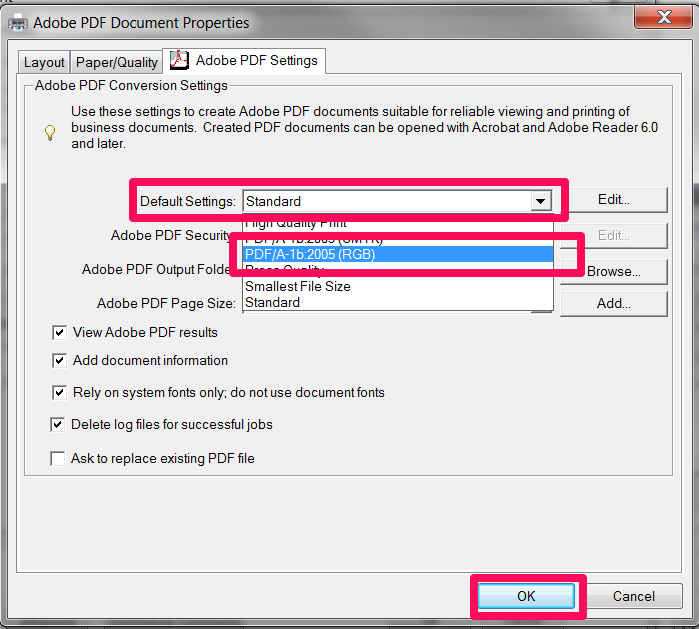
– Where it says “Default Settings” change “Standard” to one of the “PDF/A” options.
– Also, while you are here, click the “Paper/Quality” tab and select “Black & White”.
– Click OK and print.
The document should then print (better than the Amyuni driver). You should then be able to upload it without errors and it should pass the online filing validation checks. 

AdobeError2


Update: My US colleagues advise that for US Patent Office compliance CutePDF is recommend – http://www.cutepdf.com/ .

Quick Search Hack for European Patent Application Numbers

On official communications from the European Patent Office (EPO) the application number is listed in the form: 13123456.9.

However, to search for this patent application on the European Register you need to use:  EP13123456 – i.e. you need to add EP and remove the check digit.  

This is often a pain. It is especially a pain if you have performed optical character recognition on a scanned-in communication. In this case you cannot copy the application number directly from the PDF into the European Register search bar.

A quick solution (until the EPO fix it): this little bit of HTML and Javascript.

<!DOCTYPE HTML>
<html>
<head>
<meta charset="utf-8">
<title>EP Quick Search</title>

<script>
function changeNumber()
{
	var n = document.getElementById("number");
	var number = n.value;
	var start = "EP";
	var end_of_num = number.length-2;
	number = start.concat(number.substring(0, end_of_num));
	url = "https://register.epo.org/application?number=";
	url = url.concat(number, "&tab=main");
	window.open(url, '_blank')
}
</script>
</head>

<body>
<input type="textbox" id="number" value=""/>
<button onclick="changeNumber()">GO!</button>
</body>
</html>

Save this as an HTML file on your computer and add it as a favourite. Now just paste the application number in the box and search!

[To do – extend to GB and WO online patent registers.]

European Divisional Applications: Sanity Prevails

Huzzah.

The Administrative Council of the European Patent Office has decided to accept a change to Rule 36 EPC to remove the 24-month time limit for filing divisional applications.

Update: The actual decision has now been published and can be found here: http://www.epo.org/law-practice/legal-texts/official-journal/ac-decisions/archive/20131024a.html .

A draft of the decision is set out below:

Article 1
The Implementing Regulations to the EPC shall be amended as follows:

1. Rule 36(1) shall read as follows:

“(1) The applicant may file a divisional application relating to any pending earlier European patent application.”

2. The following paragraph 4 shall be added to Rule 38:

“(4) The Rules relating to Fees may provide for an additional fee as part of the filing fee in the case of a divisional application filed in respect of any earlier application which is itself a divisional application.”

3. Rule 135(2) shall read as follows:

“(2) Further processing shall be ruled out in respect of the periods referred to in Article 121, paragraph 4, and of the periods under Rule 6, paragraph 1, Rule 16, paragraph 1(a), Rule 31, paragraph 2, Rule 36, paragraph 2, Rule 40, paragraph 3, Rule 51, paragraphs 2 to 5, Rule 52, paragraphs 2 and 3, Rules 55, 56, 58, 59, 62a, 63, 64 and Rule 112, paragraph 2.”
Article 2

1. This decision shall enter into force on 1 April 2014.
2. It shall apply to divisional applications filed on or after that date.

The proposals are described in more detail in this document kindly circulated by the President of the European Patent Insititute.

Basically, Rule 36(1) EPC reverts back to its old form – from 1 April 2014 you will be able to file divisional applications as long as the parent application is still pending. [Subject to the caveat that an official version of the decision is yet to be published.]

Extra charges are being introduced, but these will only apply to divisionals of divisionals (i.e. “second generation divisional applications”). The exact charges have not been decided yet.

Although some will cry “u-turn” (not European Patent Attorneys though, we are all too polite), it is good to see the Administrative Council listen to feedback from users of the current system and act accordingly.

Feedback

Out of 302 responses received to a survey in March 2013 only about 7% sympathised with the current system. The negative consequences of the current system are clear:

It requires applicants to decide too early whether to file divisional applications (146 responses), e.g. before being sure of their interest in the inventions or their viability, prior to the possible emergence of late prior art, before having had the opportunity to dispute a non-unity objection, or even before being sure of the subject-matter for which (unitary) patent protection will be sought. Thus, the applicant is forced to file precautionary divisionals, thereby increasing the costs associated with prosecution (143 responses).

The time limits have not met their objectives (102 responses), since there has been no reduction in the number of divisionals, legal certainty has not increased, long sequences of divisionals are still possible, or there has been no acceleration of examination.

The time limits are complex and difficult to monitor, creating an additional burden and further costs for applicants and representatives (89 responses).

The negative effects of the introduced time limits are increased by the slow pace of examination (82 responses).

To address these consequences, the message from users was also clear: 65% voted for the reinstatement of the previous Rule 36 EPC. To their credit, it appears that the Administrative Council has done just that.

Reading between the lines it seems that enquiries from users of the system regarding the 24-month time limit and its operation were also causing a headache for the European Patent Office.

More Divisionals After Refusal?

An interesting aside is that it appears G1/09 is gaining ground. The document prepared for the Administrative Council stated:

This practice [of filing divisional applications before oral proceedings], though, has lost most of its basis since the Enlarged Board of Appeal issued its decision G 1/09 on 27 September 2010, in which it came to the conclusion that a European patent application which has been refused by a decision of the Examining Division is thereafter still pending within the meaning of Rule 25 EPC 1973 (current Rule 36(1) EPC) until the expiry of the time limit for filing a notice of appeal.

Consequently, applicants may file divisional applications after refusal of the parent application, without the need to resort to precautionary filings before oral proceedings

These “zombie” divisional applications always gave me the creeps – I would prefer to file before refusal. It will be interesting to see whether the practice of filing divisional applications in the notice of appeal period will now increase.

Don’t Slip Up: New ‘Annual’ European Patent Examination Guidelines

This sneaked under my radar so I will post it here. The European Guidelines for Examination are now revised annually. The most recent version was issued on 20 September 2013.

Details of the updates and a link to the most recent Guidelines can be found here: – http://www.epo.org/law-practice/legal-texts/official-journal/information-epo/archive/20130920.html

As highlights:

A nice little trick is that there is now a “track changes” style “show modifications” checkbox on the HTML Guidelines site. This shows the recent edits.

Just be careful: if you refer to a PDF copy, it would be easy to slip up by looking at the wrong edition. My tip is to use the HTML where you can.

Designers: Do We Need Them?

Another one of those lacuna in European design law (yay!).

Under European design law the designer has a right to be cited:

Article 18 – Right of the designer to be cited
The designer shall have the right, in the same way as the applicant for or the holder of a registered Community design, to be cited as such before the Office and in the register. If the design is the result of teamwork, the citation of the team may replace the citation of the individual designers.

However, you can still file, and receive a certificate of registration for, a design where the designer is not cited. For example, the Manual for The Examination of Registered Community Designs states in section 5.2.4:

“The citation and the waiver or the absence of any indication regarding the designer(s) is merely optional and is not subject to examination”.

The question is, then: what could happen under national design law if designer information was omitted?

Having a quick look at the commentary the jury would appear to be out.  The Community Designs Handbook states in section 4-051 that one possible remedy is:

“an amendment at the behest of the designer”.

and that it is:

“safest to name the designer where possible”

with an eye to US design rights where the designer must be named.

Under UK Design Law a designer does not need to be named (in fact there is no mechanism to do this). So in the UK at least, as long as the ownership of the design is clear, there would appear to be no consequence if designer information was omitted. Whether this applies across other European countries though is unknown. If any Design Attorneys in other European Countries have any observations please feel free to add them to the comments.

[Of course: this discussion is independent of one on ownership, which is assumed to be taken care of here. This is a separate important factor that needs to be checked carefully.]

Quick Tip: Sorting Page Number Location for European Patent Applications

One of my little bugbears is that the European rules (R.49(6) EPC) require a page number to be located at the top of a page:

Rule 49(6) EPC – All the sheets contained in the application shall be numbered in consecutive Arabic numerals. These shall be centred at the top of the sheet, but not placed in the top margin.

whereas the Patent Cooperation Treaty (PCT) rules (Rule 11.7 PCT) allow a page number to be placed at the top or bottom of a page:

11.7 Numbering of Sheets

(a) All the sheets contained in the international application shall be numbered in consecutive Arabic numerals.

(b) The numbers shall be centered at the top or bottom of the sheet, but shall not be placed in the margin.

This becomes annoying when you have to file translations or amendments at the European Patent Office (EPO), as these should follow European rules.

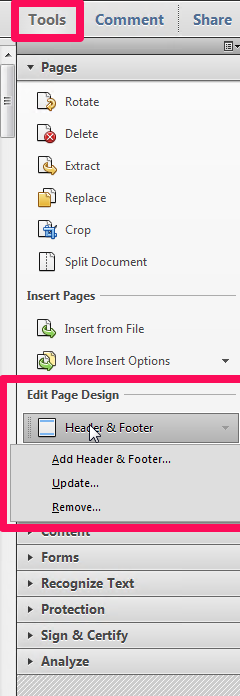
This means I often find myself needing to swap from bottom page numbers to top page numbers.  This is fine when you have a Word document  but trickier when all you have are PDF documents. However, there is a trick to swap from bottom to top page numbers.

  1. Open the PDF document.
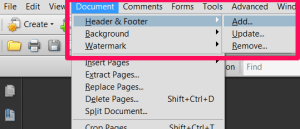
  2. In Adobe 9 – go to the top menu – ‘Document’ > ‘Header & Footer’ > ‘Add…’. Add header
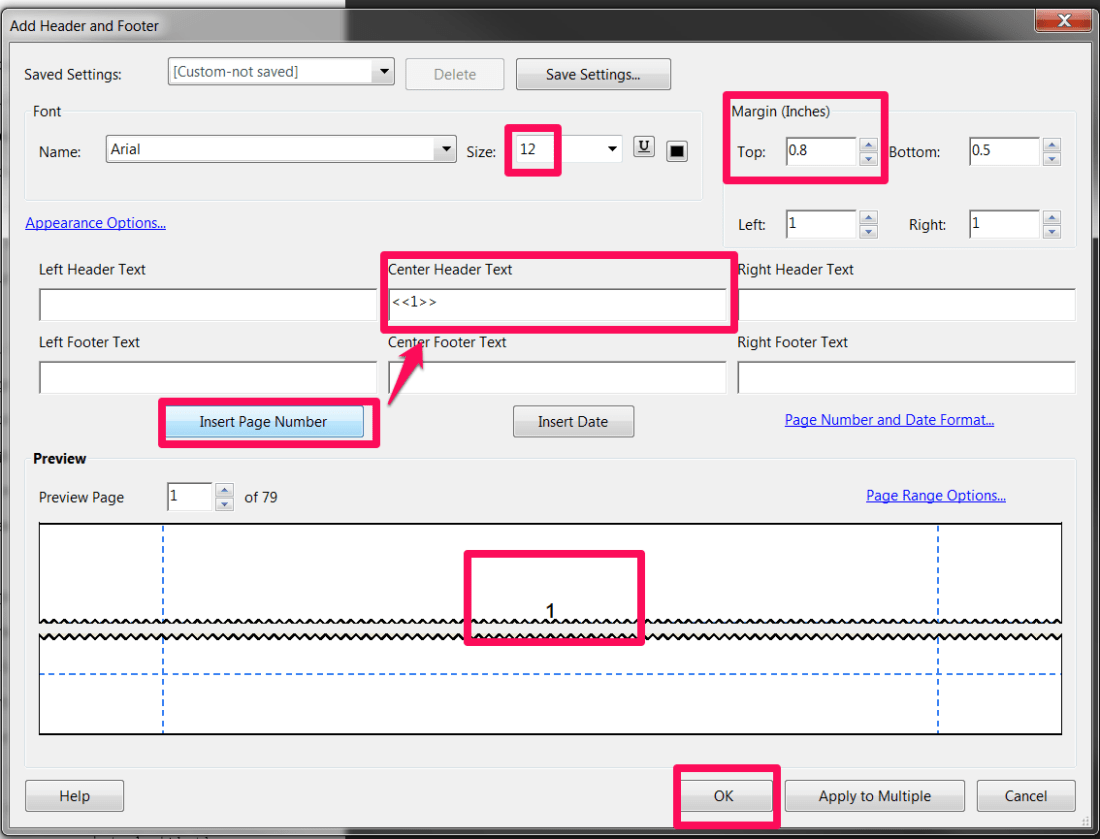
  3. Add a top header with a central page number. As the page number needs to be outside the top margin, the top margin needs to be set to at least 2cm (0.8 inches). The font size should be at least 12. Check the preview and click OK.Add header options
  4. Now to remove the existing bottom numbers. Using the top menu add another header/footer. Add header
  5. Don’t replace the existing header – click Add New.
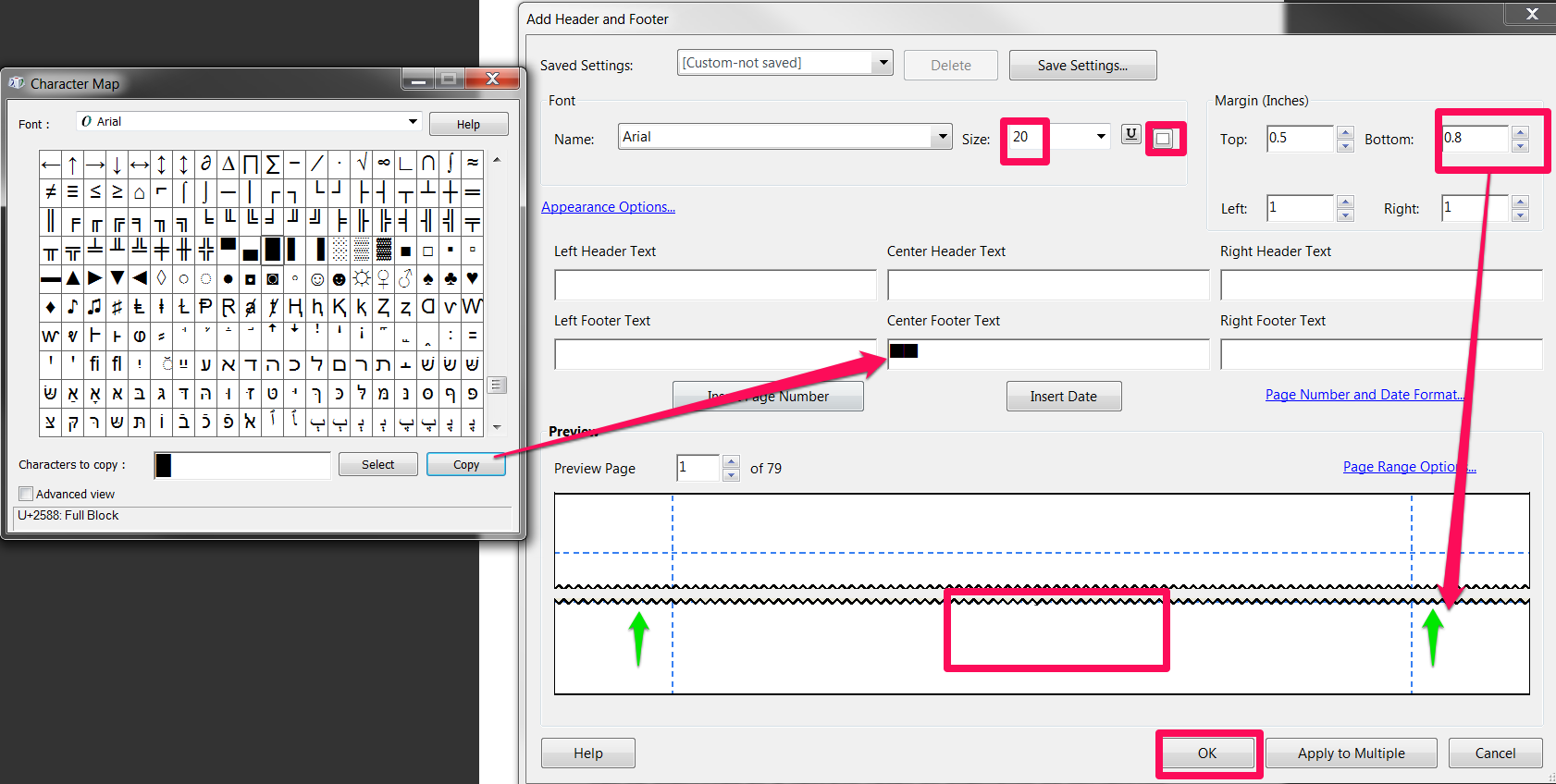
  6. Now here comes the trick – select a ‘full block’ character using Character Map (a Windows system tool). Change the text colour to white and select a largish font size (e.g. 20+). Now copy a few of the ‘full block’ characters to the center footer. Then adjust the size of the bottom margin so the ‘full block’ characters obscure the existing page number.add new footer
  7. There you go – now compliant with European practice. To ‘fix’ the changes ‘print’ the PDF file (e.g. using the EPO-supplied Amyuni PDF printer). If you save the header and footer settings you can recall them easily.

[Bonus tip: On Adobe Acrobat X (10) they have irritatingly moved most of the top menu options to a right-hand-side “Tools” menu. Use this to select header-footer options as below.]

Adobe X